Barista V0.1 User Manual
1. Coffee workstation materials
| Name | Description |
|---|---|
| Height-adjustable desk | 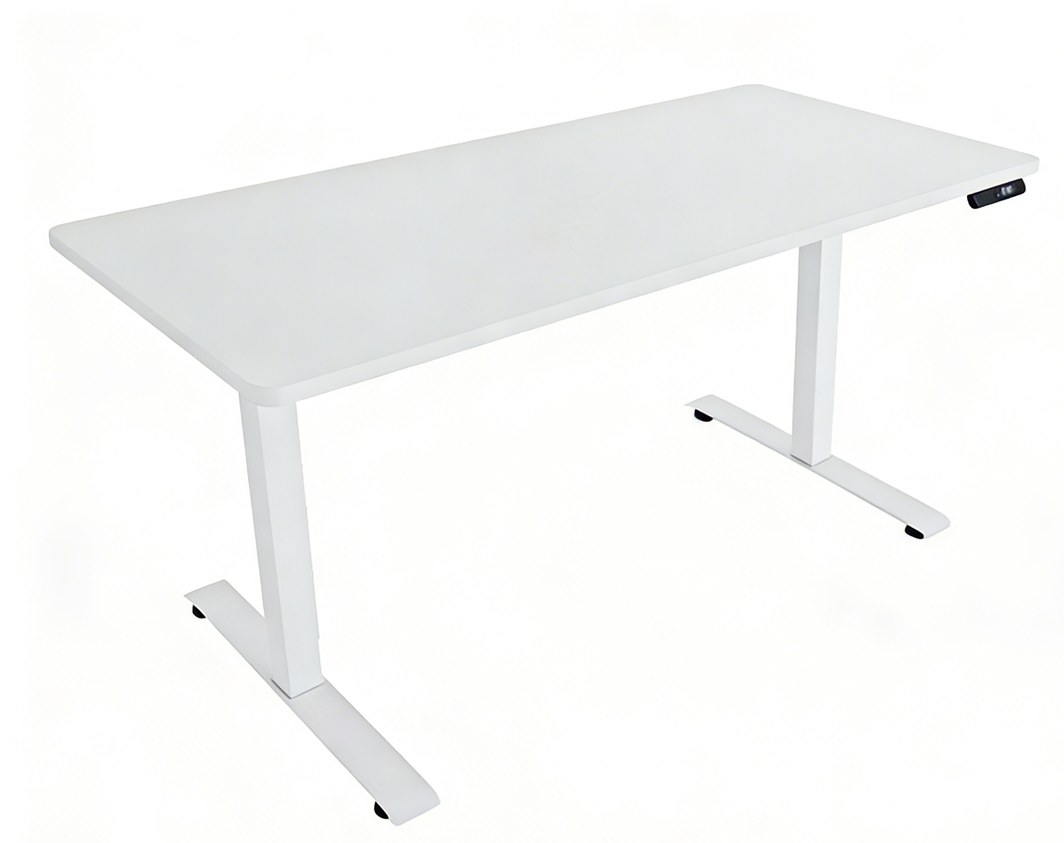 |
| Coffee Machine | 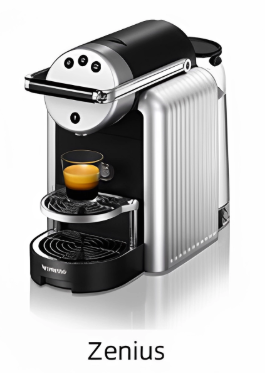 |
| Coffee Capsule | 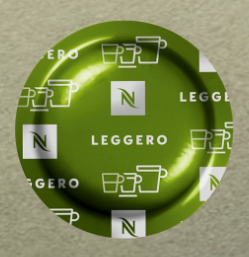 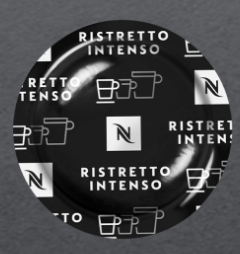   |
| capsule tray | 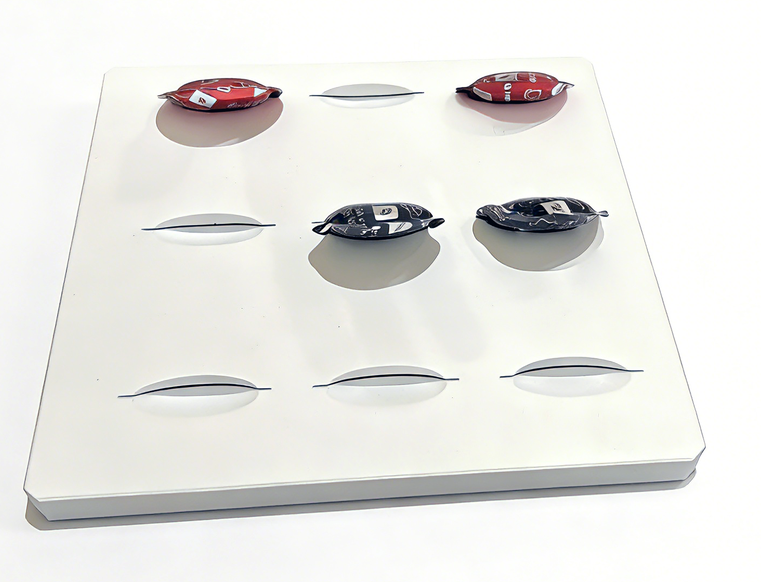 |
| cup dropper | 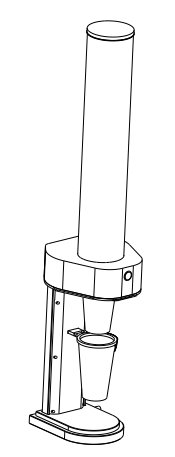 |
| Disposable paper cup |  |
| Audio | 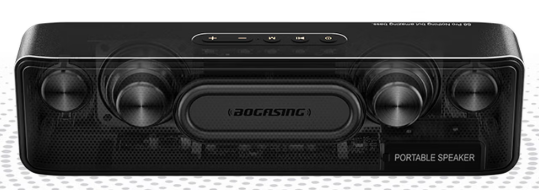 |
| Microphone | 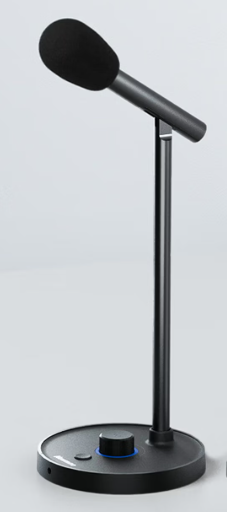 |
| Tablet, tablet stand, portable monitor | 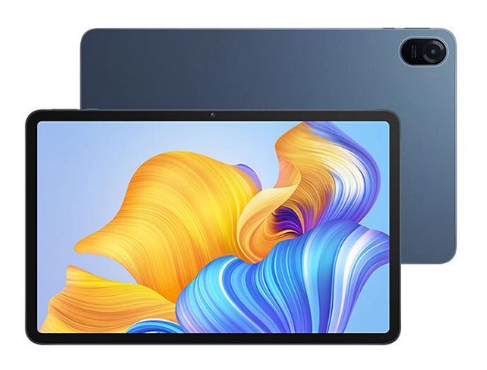 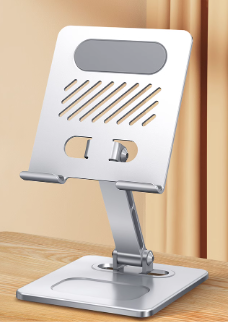 |
| USB Hub | 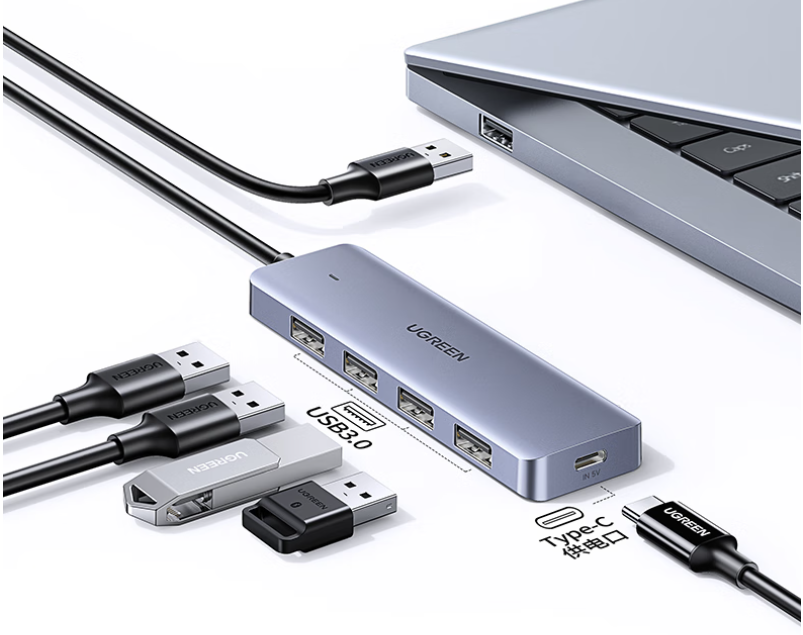 |
| Positioning Bracket | 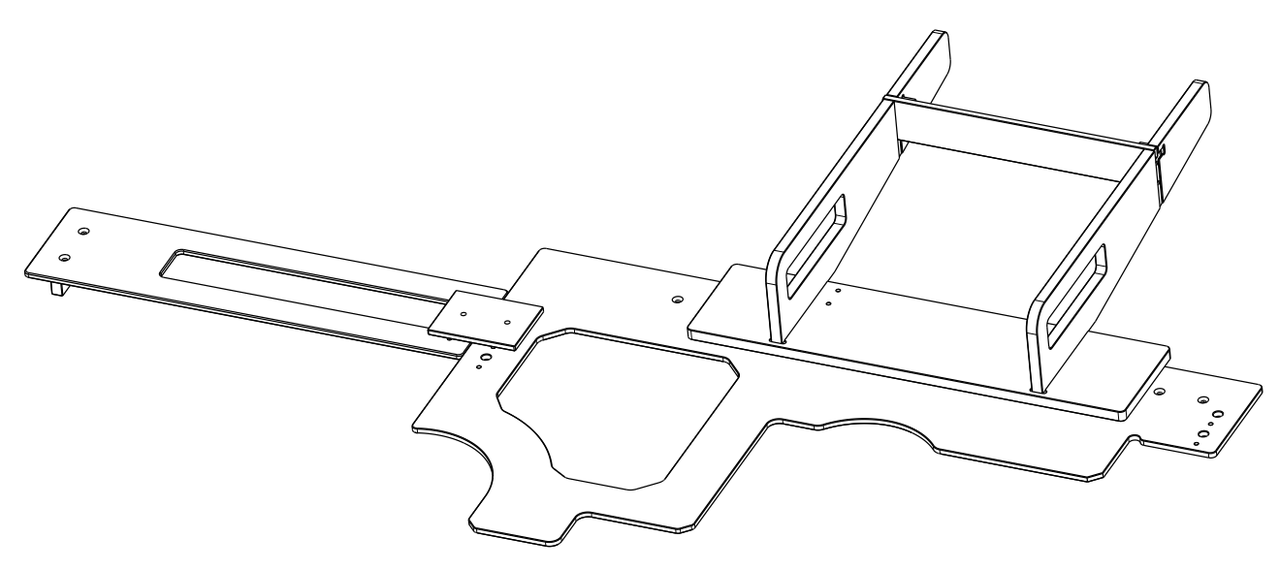 |
2. Coffee workstation preparation
This chapter applies to administrators , introducing how to assemble and prepare the coffee workstation.
Take out the robot from the aviation case and the coffee workstation materials from the carton, and place them in the work area for standby.
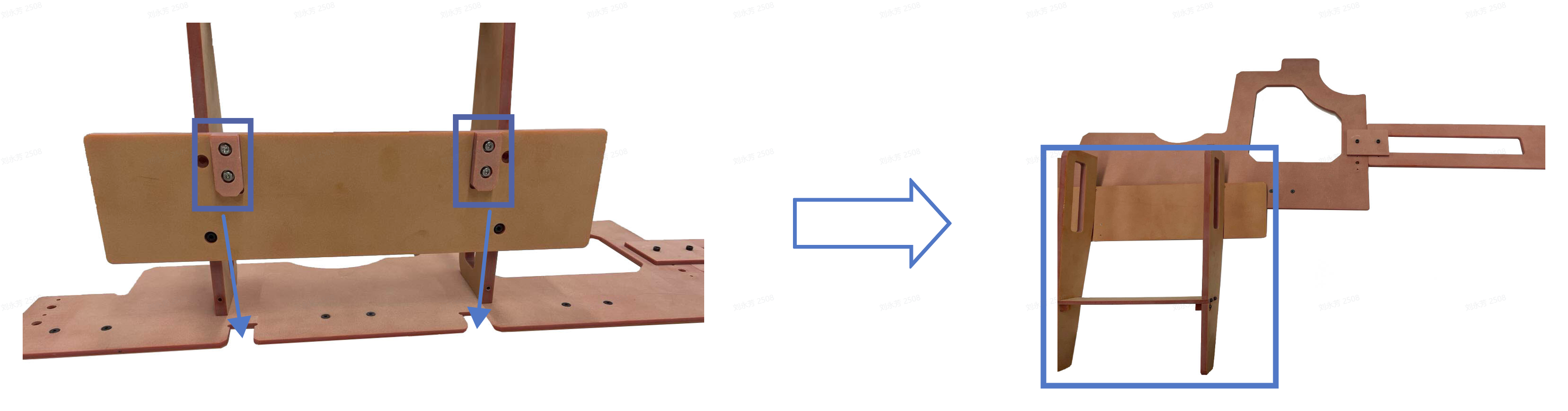
Take out the positioning bracket, find the connection parts and holes as shown in the figure below, align the connection parts with the holes, and place it flat on the lifting desk surface.
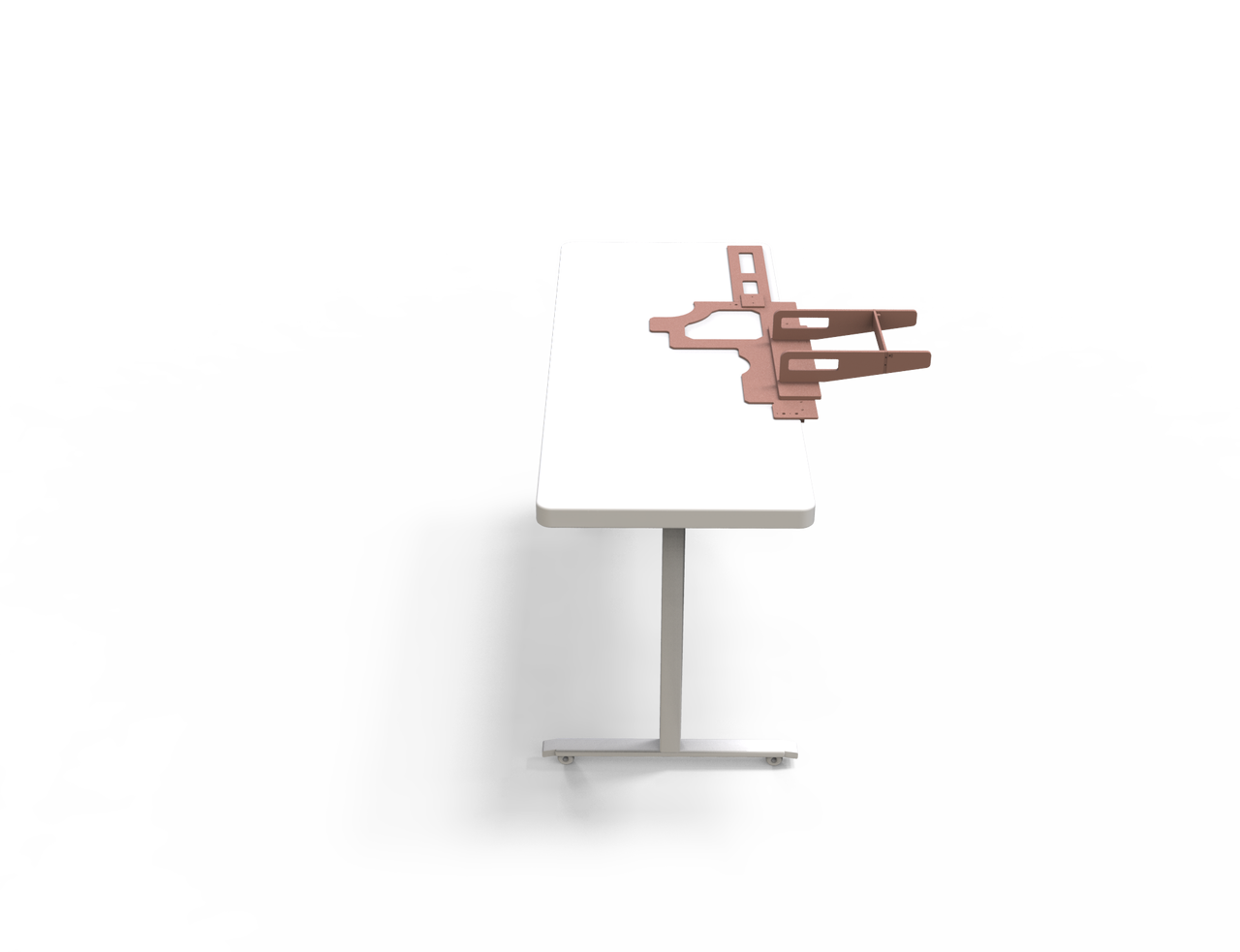
- Move the positioning bracket to the position where it exactly fits into the robot's waist, as shown in the figure below.
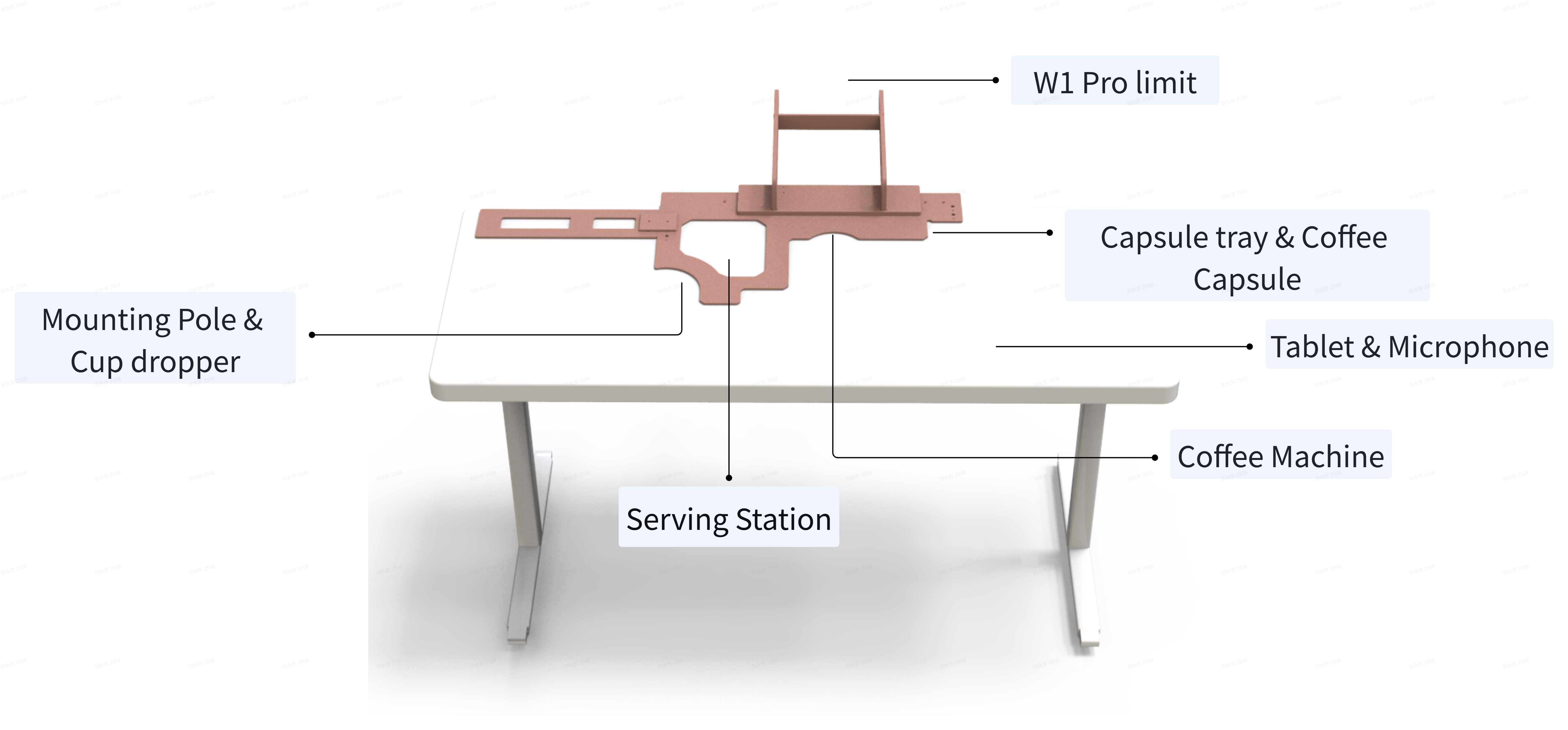
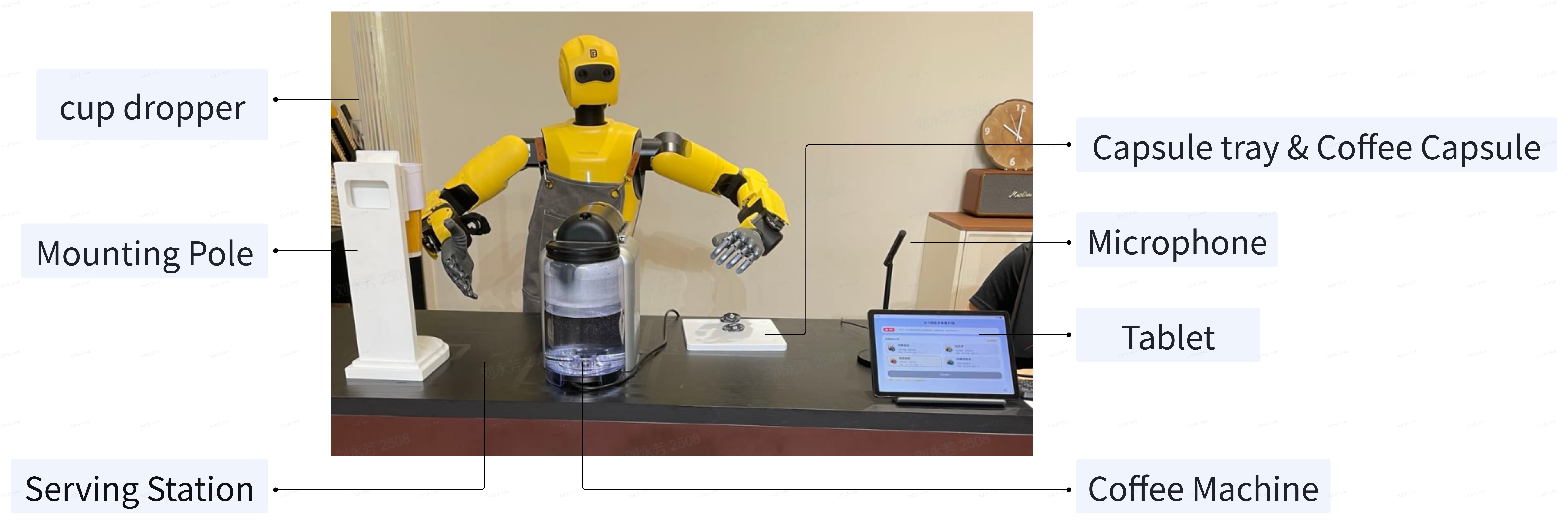
- Place materials such as coffee machines, cup dispensers, and coffee capsules one by one in the preset positions of the positioning bracket.
- Voice Hardware Connection
Connect the USB Hub to the PC2-USB2.0-1 or PC2-USB2.0-1 interface on the right side of the robot's chest;
Insert the charging head of the speaker into the socket, and connect the speaker to the USB Hub with a USB data cable;
Connect the microphone to a USB Hub using a USB data cable to charge the microphone, then plug the microphone's Bluetooth receiver into the USB Hub.
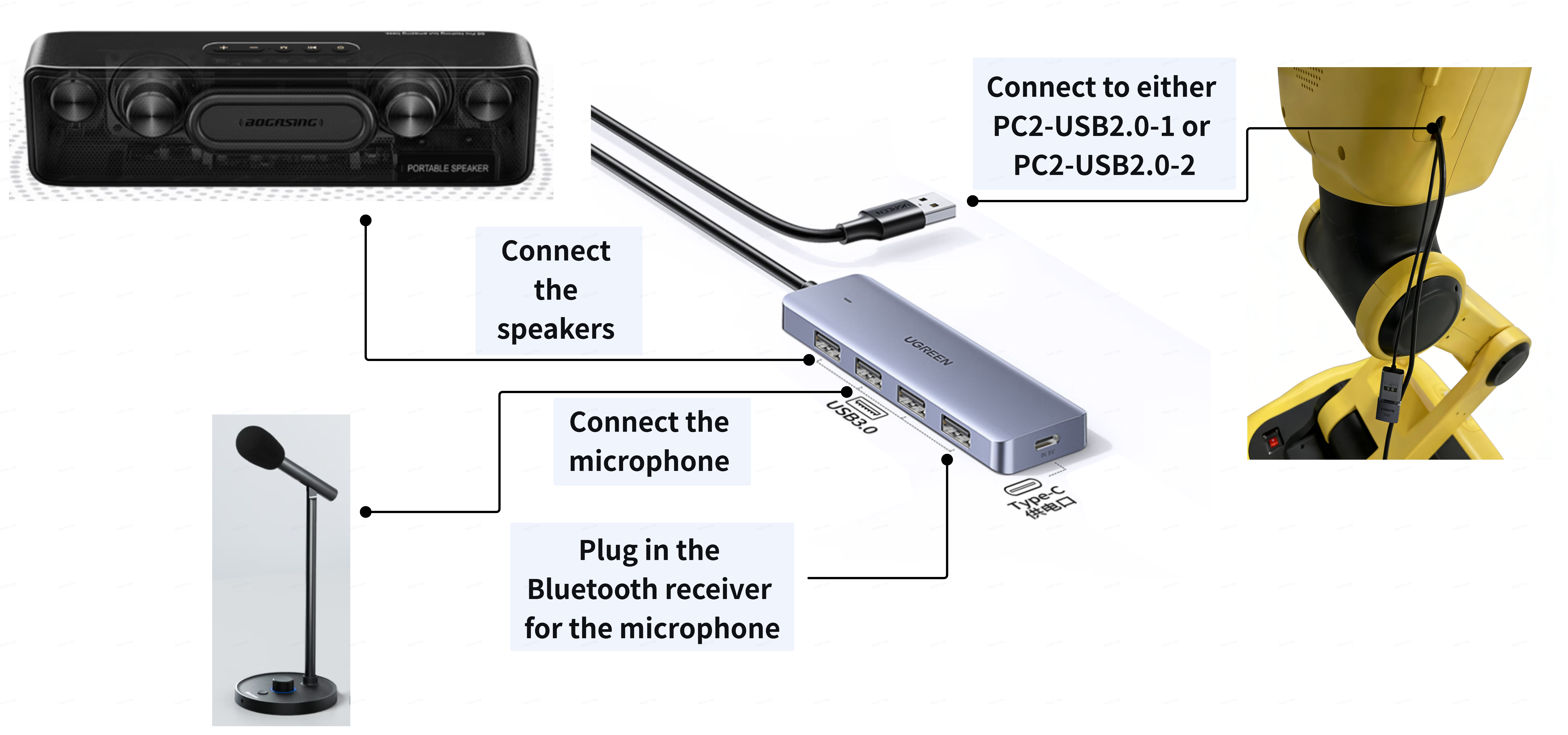
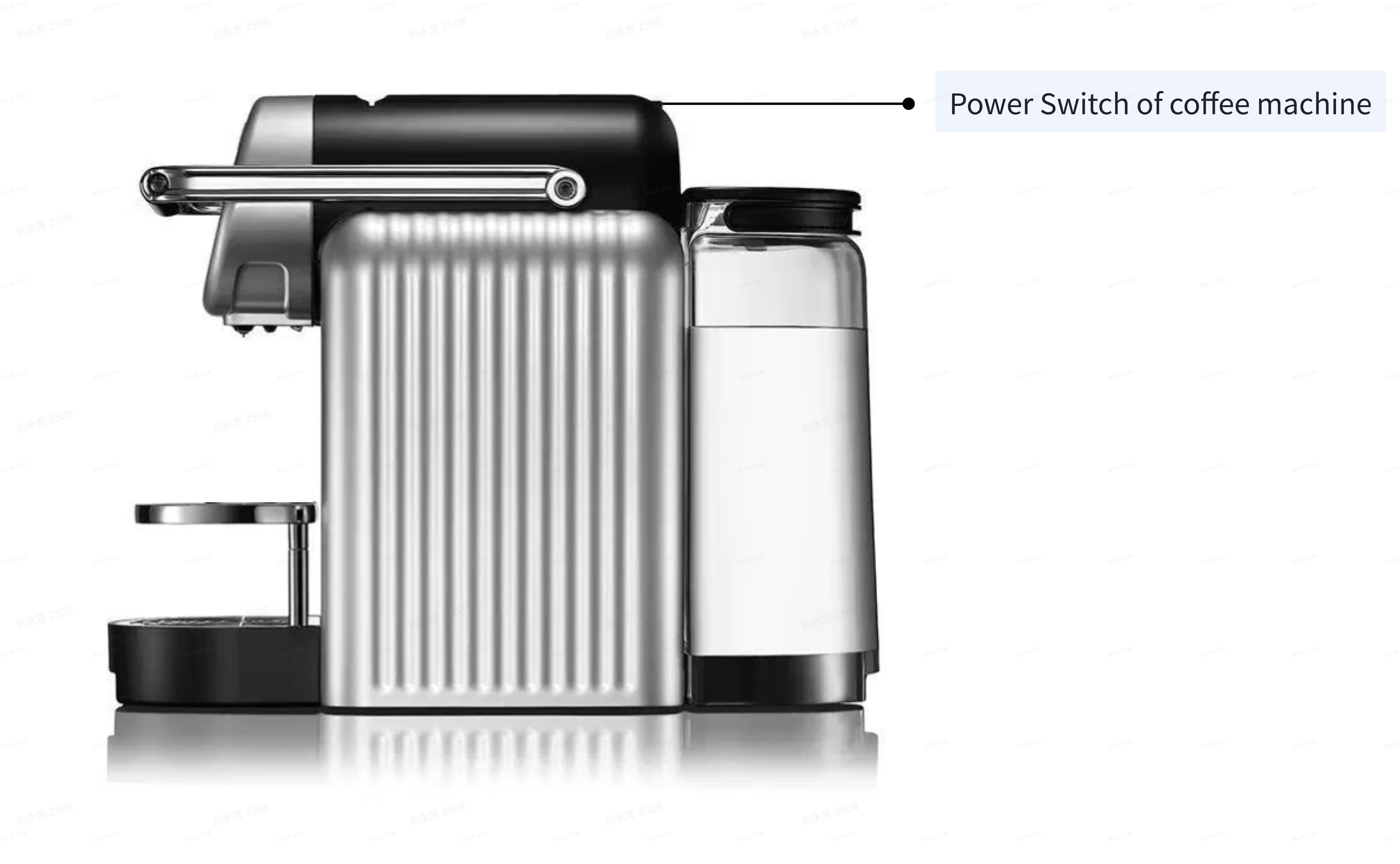
- Insert the coffee machine charger into the socket, press the power button on the coffee machine to turn it on, and long press the power buttons of the speaker and microphone to turn them on.
Note:
Audio and microphone should be turned on before starting the robot; otherwise, it will cause the voice interaction function to become unavailable.
Start the robot, Connect the robot to the local area network of the workplace, Make the robot move into the standby posture of unboxing standing.
After the personal computer is turned on, the W1 control interface will automatically start up. During the startup process, it will automatically determine the connection status with the robot and establish a communication connection, while simultaneously displaying the loading progress of the control interface on the screen.
Turn on the tablet, connect to the Wi-Fi at the workplace, enter the URL in the tablet's browser, and access the coffee ordering interface.
Note:
It is necessary to ensure that the robot and the tablet are connected to the same local area network; otherwise, coffee orders cannot be placed via the tablet.
The URL of the coffee ordering interface is a combination of the robot's IP Address and Port Number 8012 (e.g., 192.168.15.27:8012), and there are two ways to obtain the URL:
First, obtain the website URL through voice interaction with the robot. When the user says "Robot's IP Address", the robot will respond with the robot's IP Address (for example, the robot responds: "Hello, my IP Address is 192.168.15.27"), and then add the Port Number 8012 to get the website URL of the ordering interface.
Second, it is obtained through the W1 control interface. The web service IP shown in the figure below is the URL of the coffee ordering interface.
At this point, the coffee workstation is ready and can start operating.
3. Coffee Workstation Operation
This chapter applies to end users , for the daily operation and ordering of coffee workstations.
3.1 Pre-operation inspection
(1) Personnel Preparation
Conduct pre-operation training for end-users of the coffee workstation, including:
Robot core function operations: voice wake-up / sleep, coffee mode, and operation of the tablet coffee ordering interface.
Common fault handling: Response procedures for warning states such as water shortage, capsule shortage, full waste capsule bin, insufficient coffee cups, etc., as well as the reporting method for the "Contact Administrator" fault (400-8086-299).
Voice interaction narrative: Familiarity with the robot's commonly used response voices and user instruction keywords can assist users in efficient interaction.
Clarify the responsibilities of operators, including replenishing supplies during business hours, cleaning up waste, monitoring equipment status, and answering user inquiries (such as introducing coffee flavors, explaining robot functions, etc.).
(2) Equipment & Supplies Inspection
Equipment Inspection
Robot body status: Observe whether the status light on the chest of the W1 barista robot is constantly lit green. If the status light is constantly lit green and there are no looping voice announcements such as "robot malfunction" or "serious malfunction", it indicates that the robot can be used normally.
Coffee Machine Inspection:
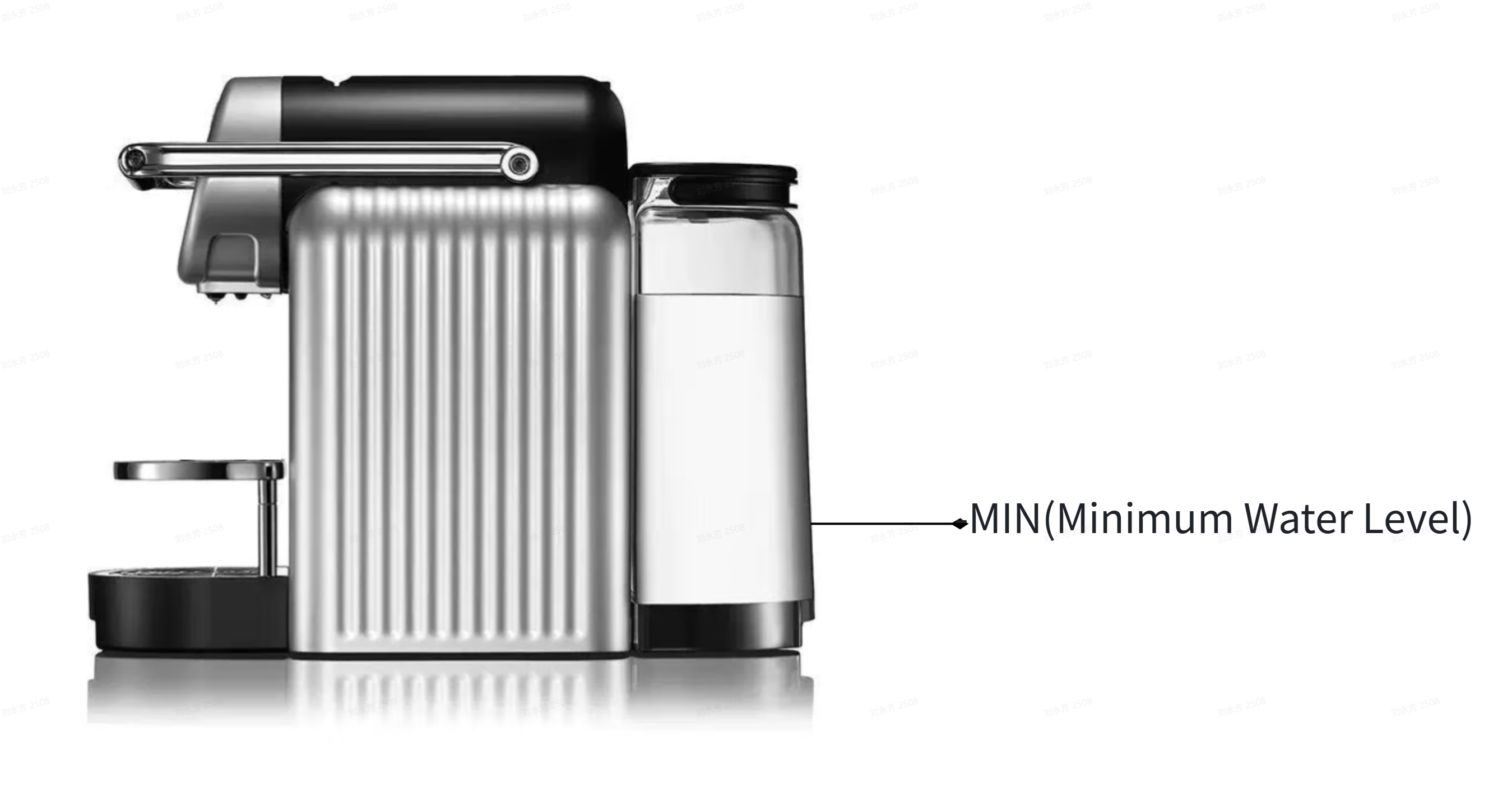
- Water level check: Observe whether the water level in the coffee machine water tank exceeds the "-MIN-" minimum water level line. If the water level is insufficient, please immediately add clean water to the water tank until it exceeds the minimum water level.
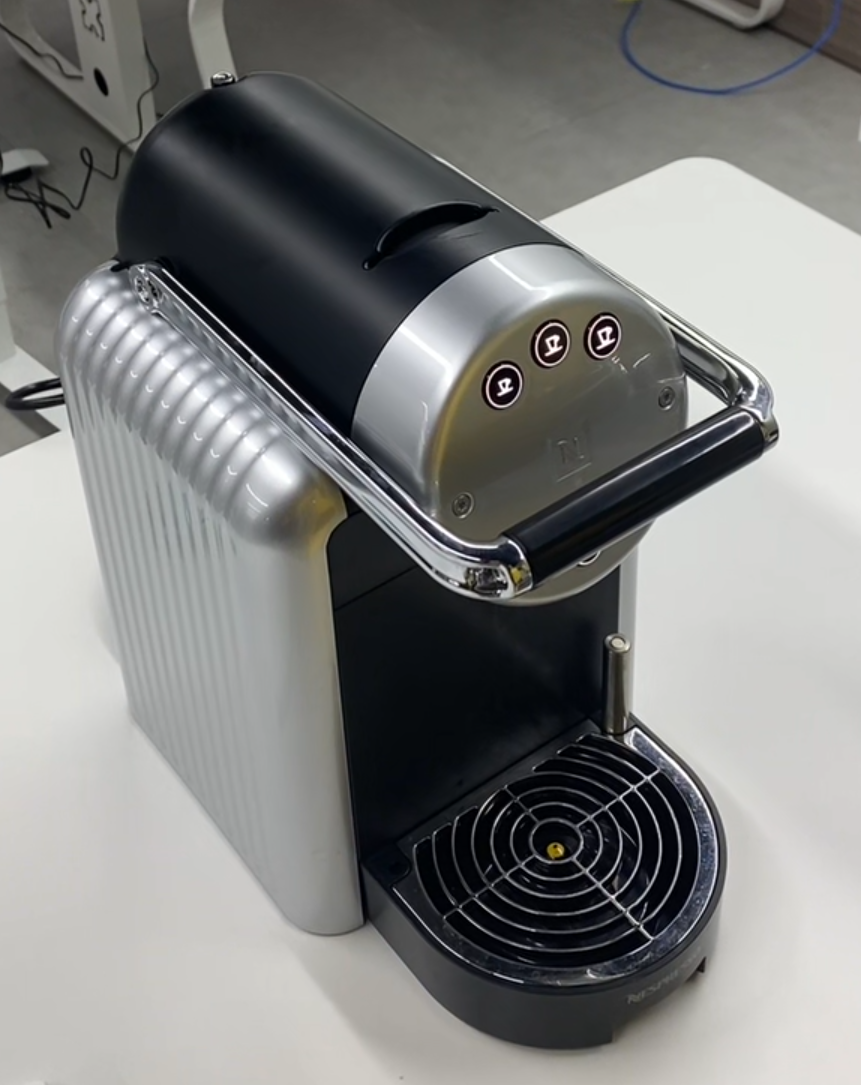
- Light Status Check: After the coffee maker is turned on, check whether the lights of the three cup volume buttons are constantly white, without abnormal colors or flickering. If the lights of the three cup volume buttons are flashing red, it indicates that the coffee maker is running out of water, and clean water should be immediately added to the water tank until it exceeds the minimum water level. The three cup volume buttons are 25ml, 40ml, and 110ml respectively, and the robot currently only supports brewing 110ml large cups of coffee.
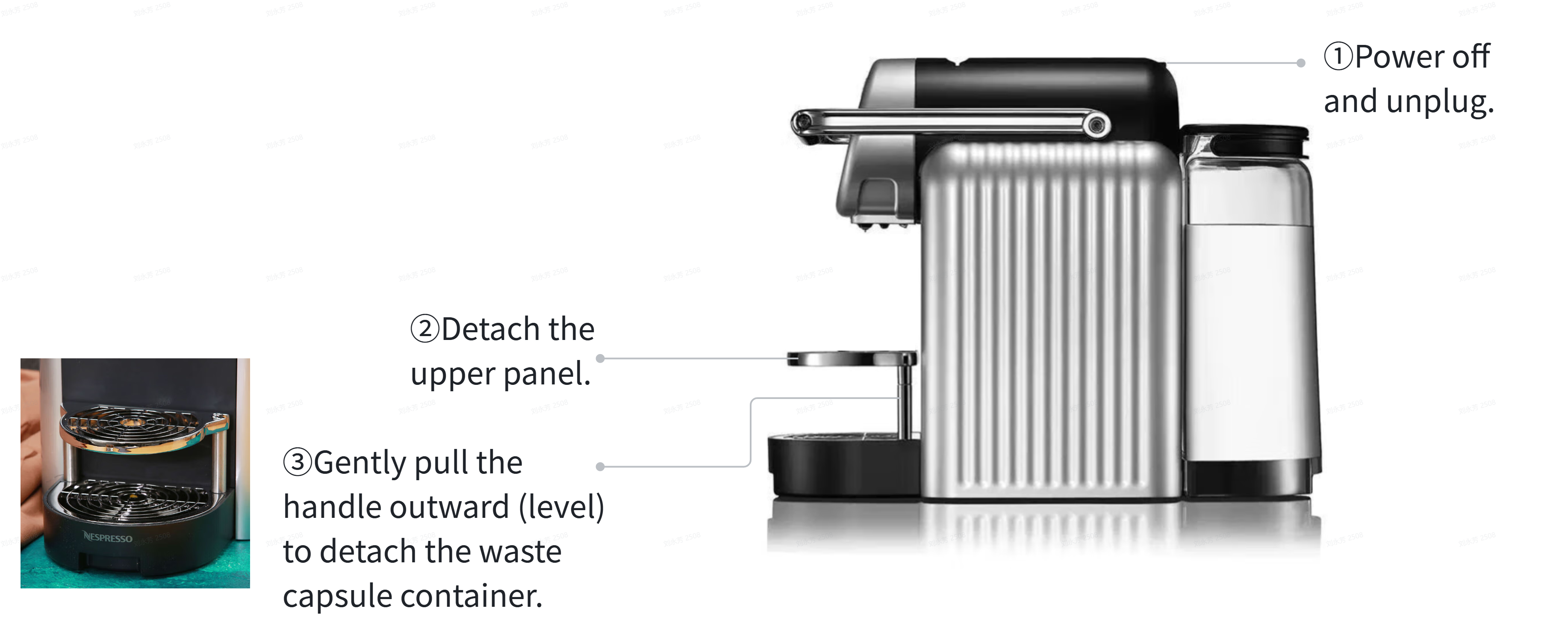
- Waste capsule inspection: Open the waste bin. If there are any remaining waste capsules, pour them out into the trash can. If there is residual coffee grease or coffee powder inside the bin, it can be rinsed with warm water and a neutral detergent, then dried by wiping or air-drying after rinsing. Align the cleaned and dried waste bin with the guide rail at the bottom of the coffee machine, and smoothly push it inwards until it is fully snapped into place.
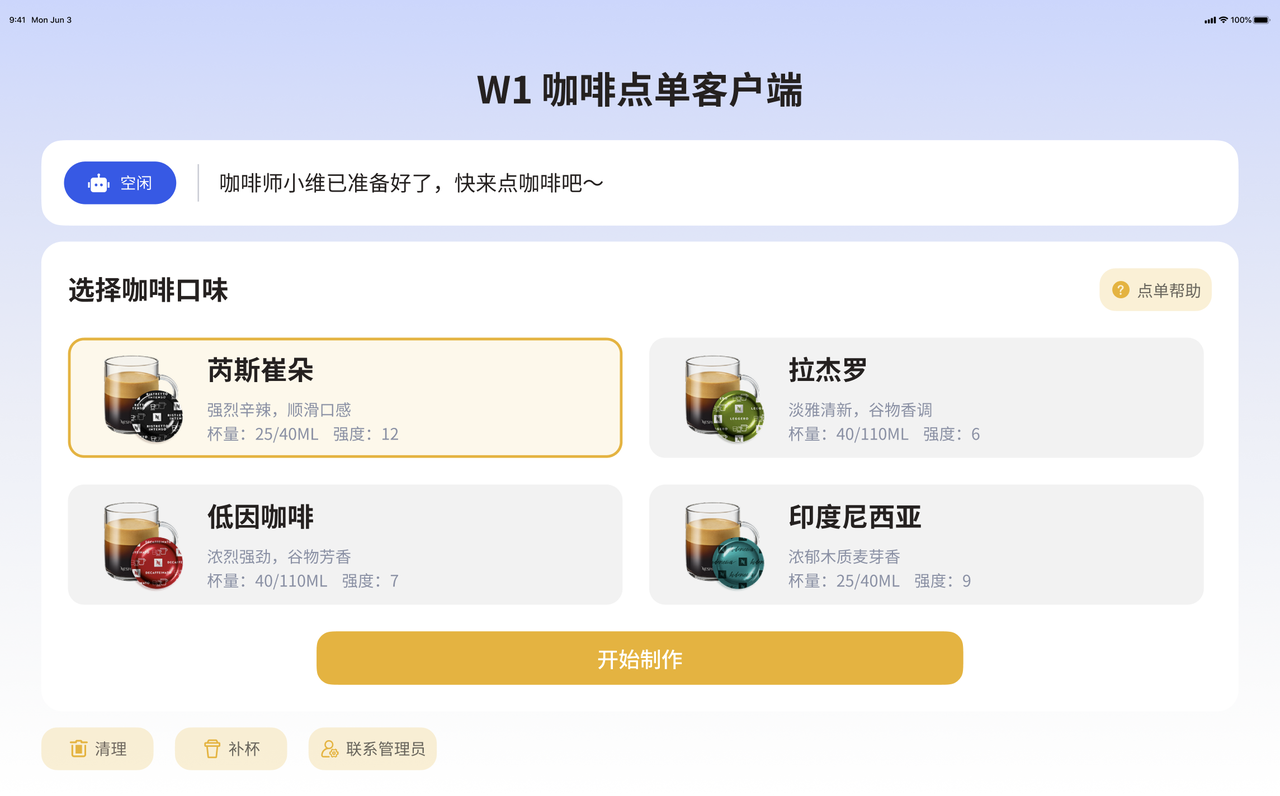
Tablet Inspection: Ensure that the tablet's Wi-Fi connection is normal, the interface display is complete, and there are no "Webpage Error" prompts.
Voice function check: Check whether the voice interaction function is normal. Hold the microphone to wake up the robot, and the robot should respond and answer normally.
Inspection of the pick-up area: Ensure that the tabletop environment is clean and tidy, guarantee that there is at least one available space in the pick-up area to avoid affecting the placement of freshly brewed coffee.
Material replenishment
- Coffee Capsule Replenishment : The robot supports 4 types of coffee capsules (Rajero Coffee, Ristretto Intense Coffee, Decaffeinated Coffee, and Indonesian Coffee). Please check the capsules on the capsule tray and replenish them to ensure an adequate quantity of each flavor.
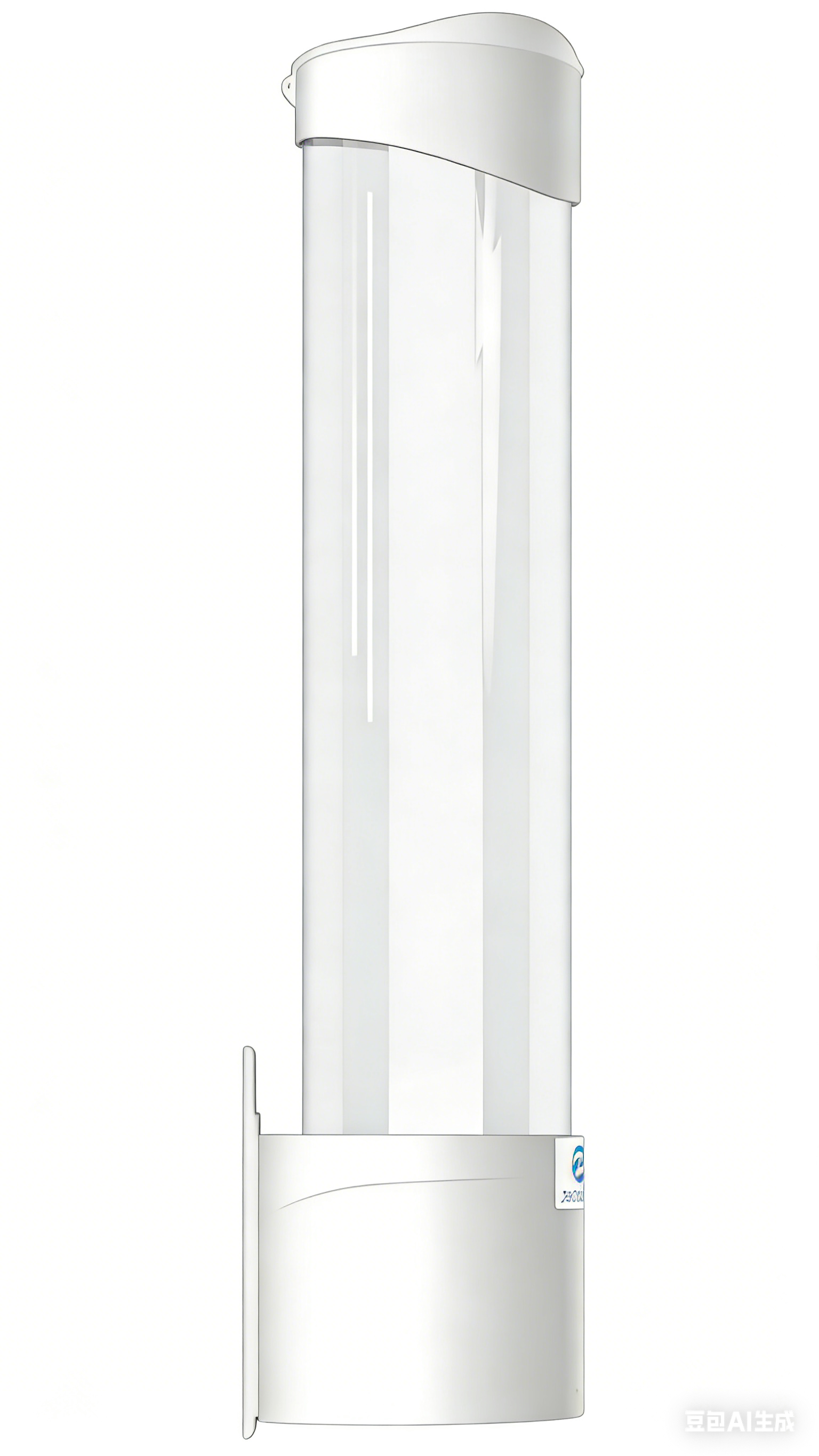
- Replenish coffee paper cups: Check the number of coffee cups in the cup holder and replenish them, ensuring that the initial quantity is greater than 2.
Note:
It is recommended to place only half the number of coffee cups to prevent the robot from accidentally grasping multiple coffee cups.
(3) Output: Generate the "Pre-operation Preparation Check Sheet", record the following details, and sign for confirmation:
| Inspection Item | Inspection Content | Inspection Result (Normal / Abnormal) | Exception handling scenarios |
|---|---|---|---|
| Robot Status | Status light, voice broadcast, hardware function | ||
| Coffee Machine Status | Water level, button light, waste capsule box | ||
| Tablet Ordering Interface Status | Wi-Fi connection, interface display | ||
| Voice Function | Is human-machine voice interaction normal? | ||
| Material Inventory | Coffee capsules, coffee cups | ||
| Personnel Training | Operation process, fault handling, narrative mastery |
3.2 Ordering Interaction
3.2.1 Ordering Process
Users can complete their orders in two ways, with convenient operations and support for personalized needs:
(1) Voice Ordering
Please place an order with the robot barista via voice interaction.
(2) Tablet Ordering
- The four-square grid card on the tablet ordering interface displays the coffee name and high-definition image. After the user clicks to select the flavor, clicking the "Start Brewing" button will prompt the robot to start making coffee.
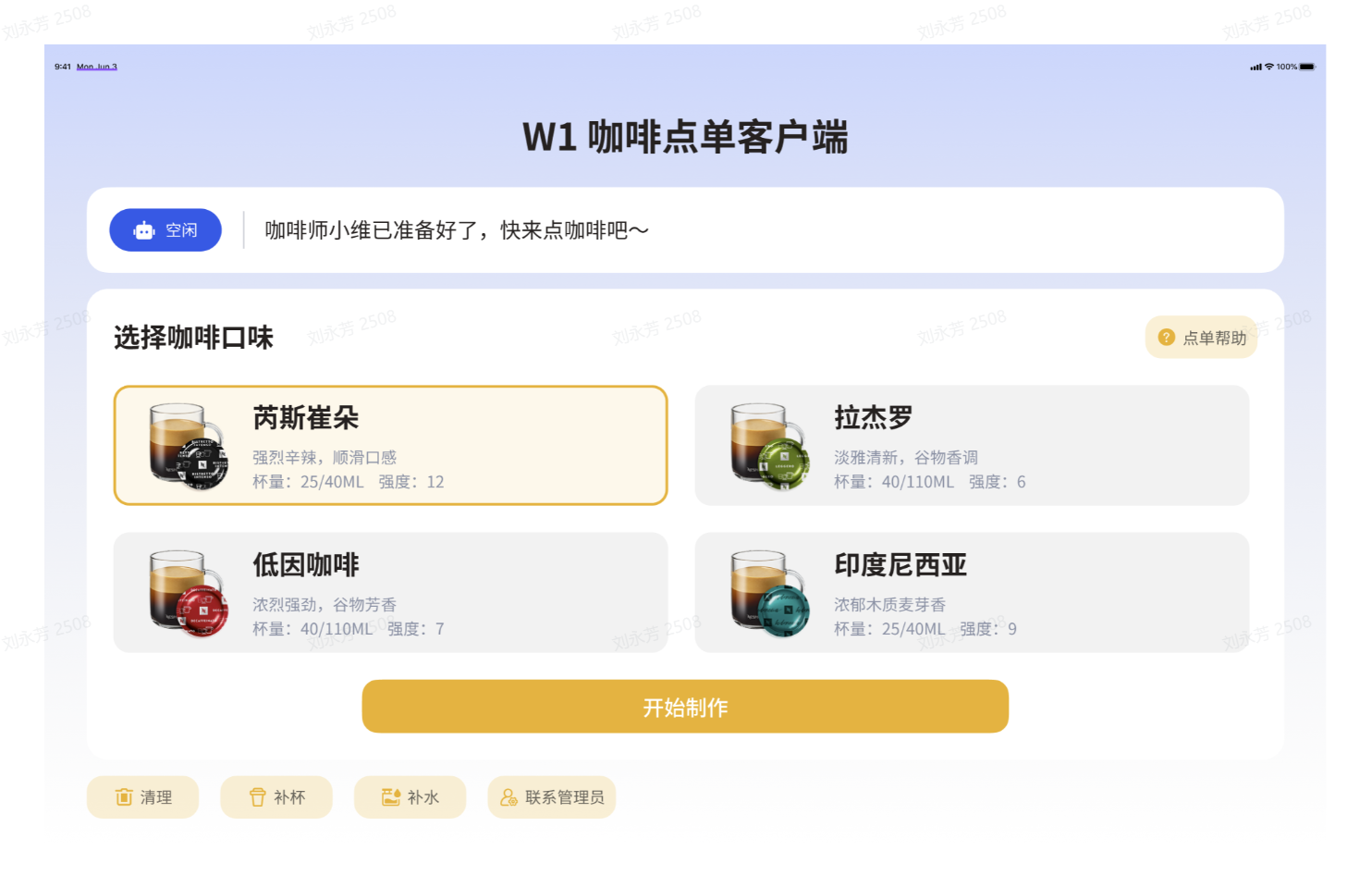
- The status bar displays the real-time working status of the robotic barista. If the status is "idle", it means the robot can immediately make coffee; if the status is "working", it means the robot is currently making coffee and will need to wait a while before making the next cup of coffee.


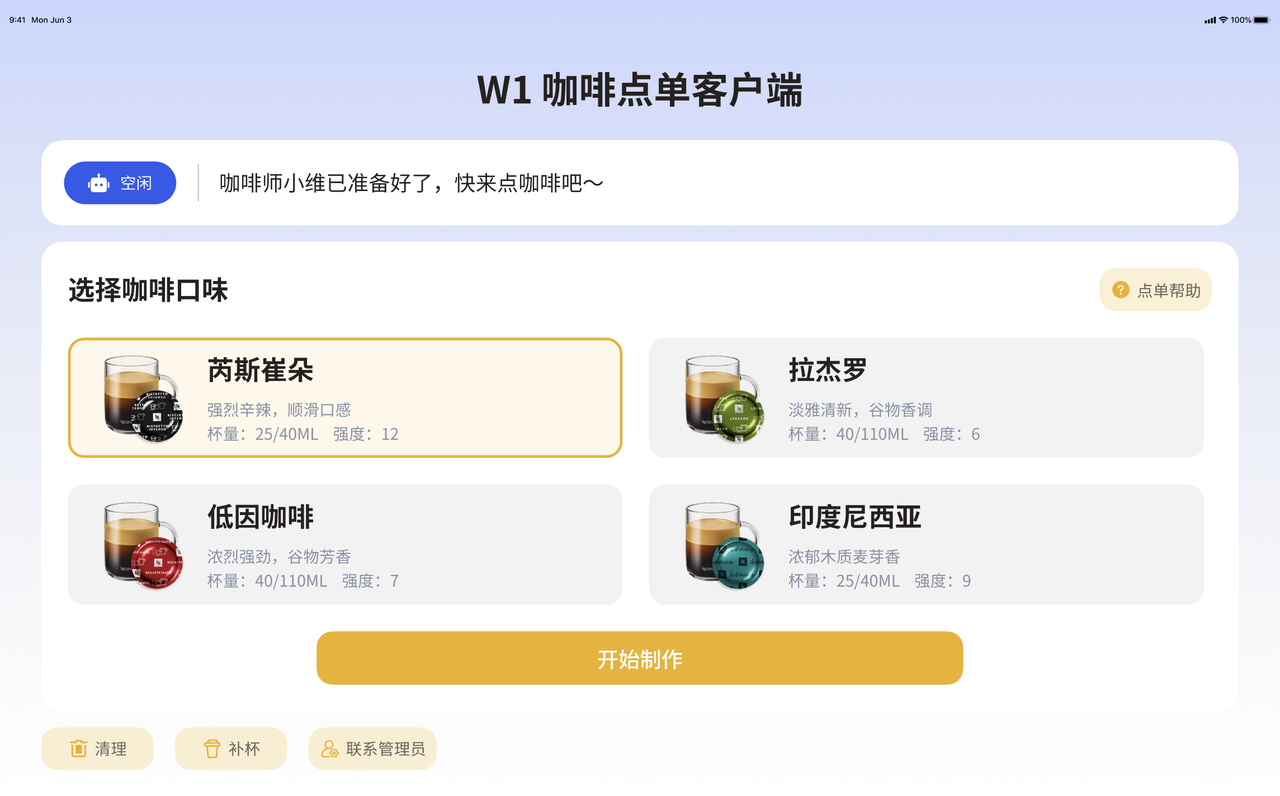
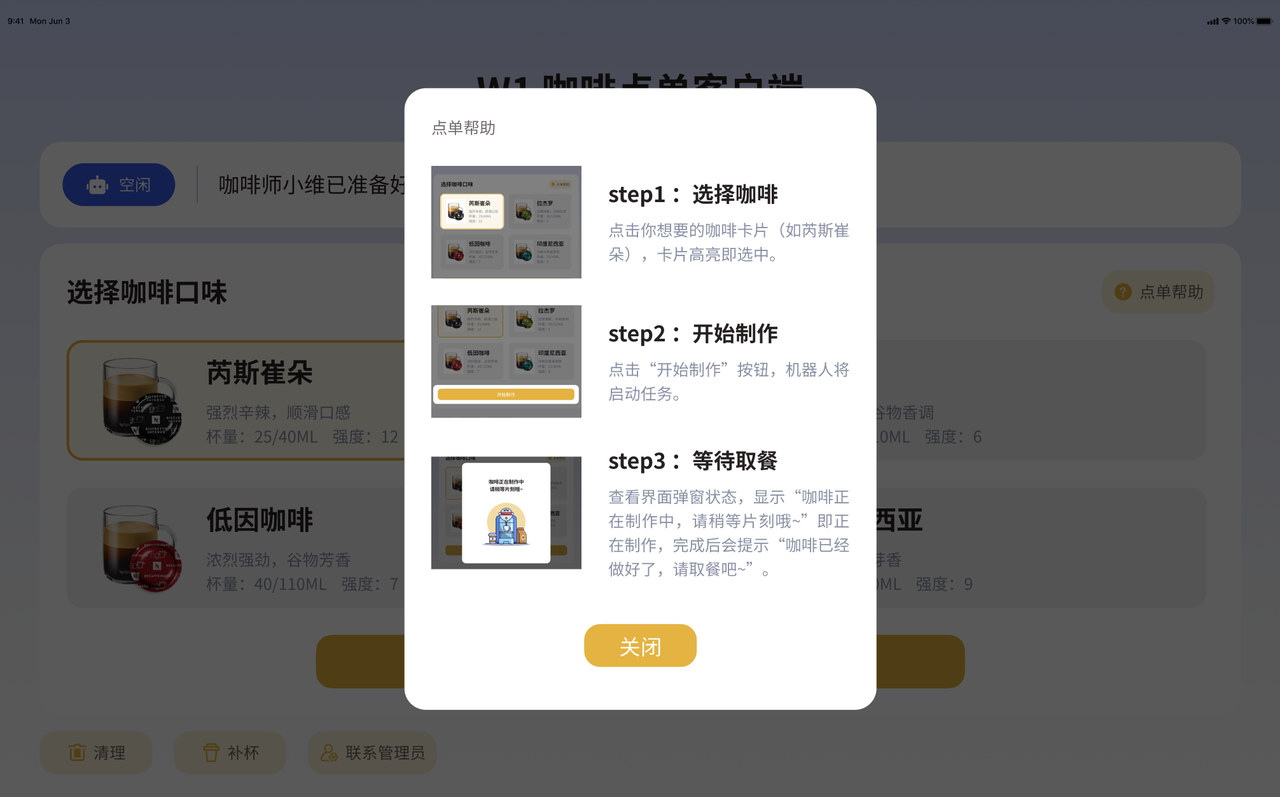
- Users can click on "Ordering Help" to learn about the coffee ordering process.
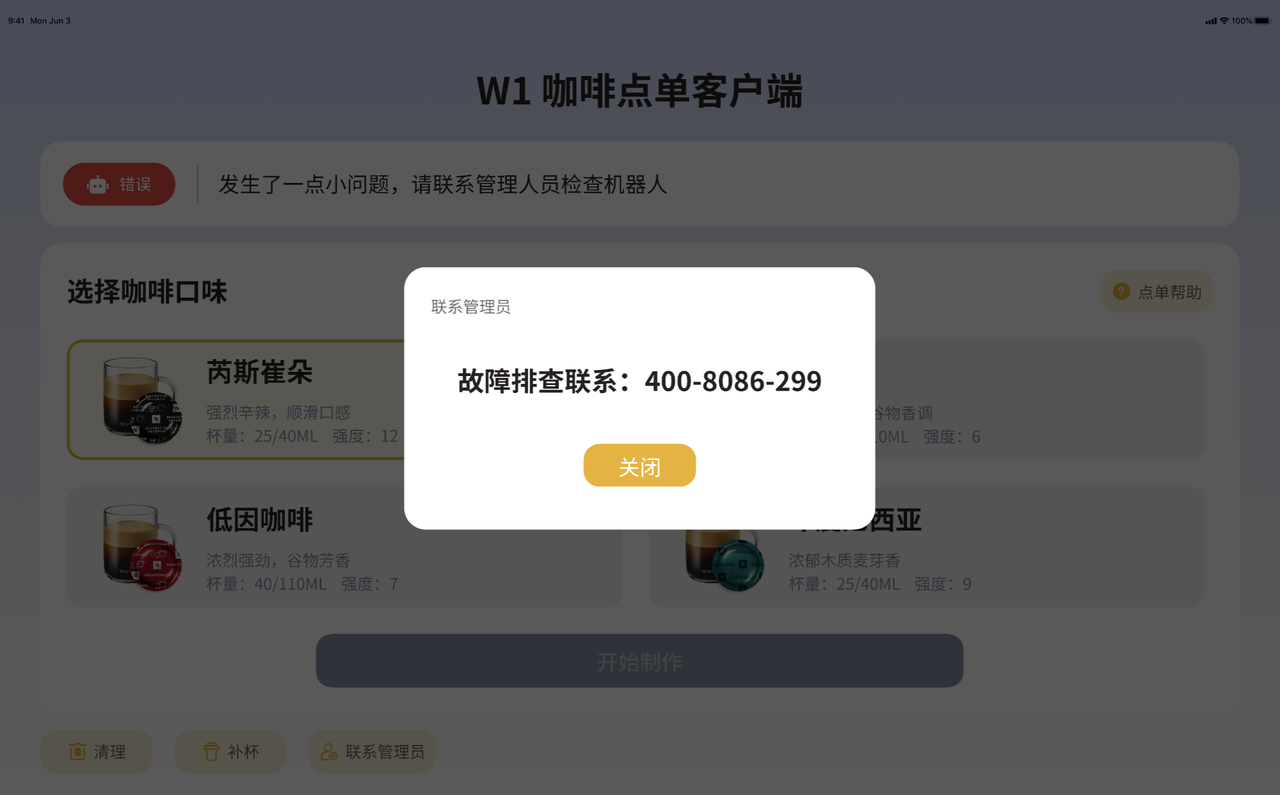
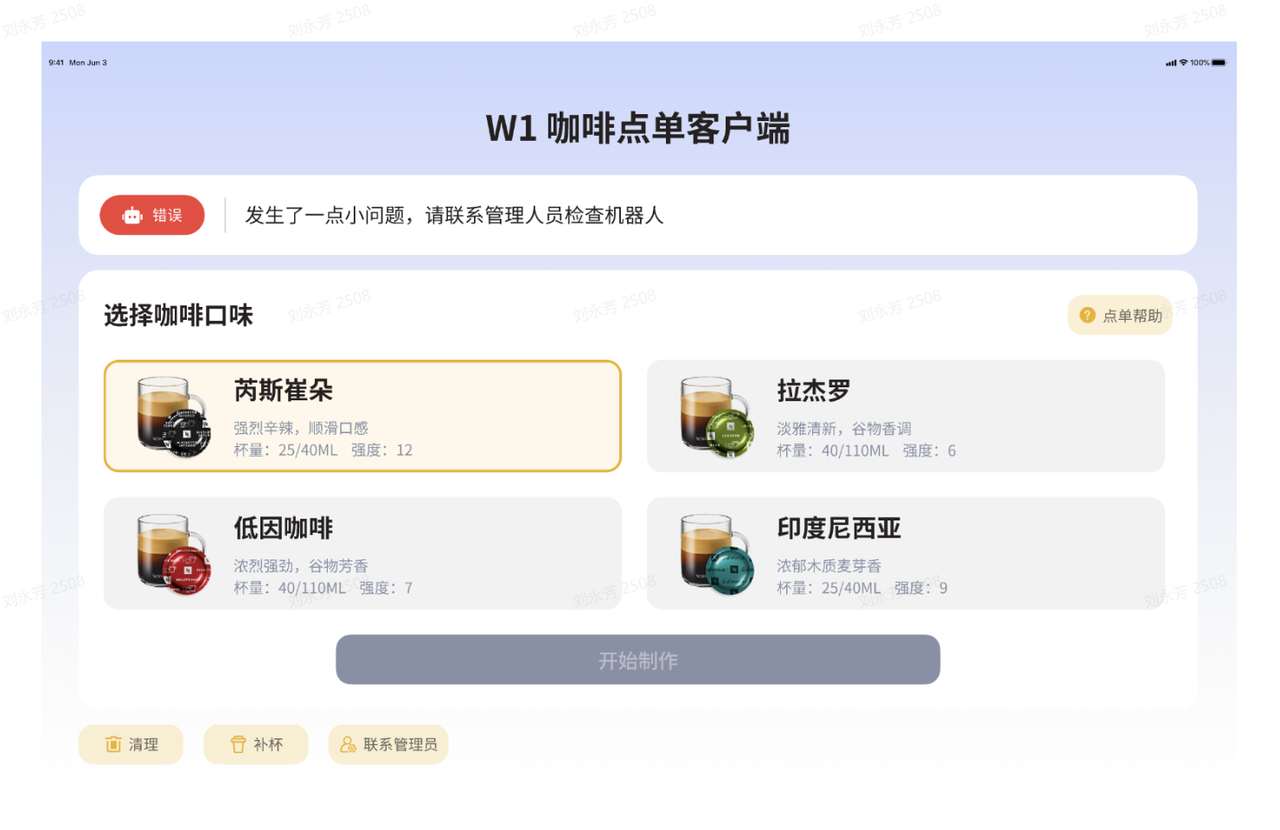
- If the status bar shows "Error", it indicates that the robot has malfunctioned (OP status / voice module / W1 control interface status), a pop-up error message will appear. After clicking to close, the status bar will still show a warning, and the "Start Production" button will be disabled. Please call to contact the Transdimensional Intelligence technical support staff.
3.2.2 Waiting for Coffee Stage
(1) Coffee Making Process
After clicking "Start Making" on the tablet ordering interface, the robot opens the coffee machine lid while announcing "I'll open the lid" via voice. If the coffee machine lid is already open, the robot starts executing from the next step.
The robot uses its left hand to pick up the corresponding coffee capsule and its right hand to pick up the coffee cup.
If there are no coffee cups in the cup dispenser, the robot will abort the coffee-making process, and a warning message "Coffee cups are out of stock" will appear in the status bar of the order interface, as shown in the figure below.

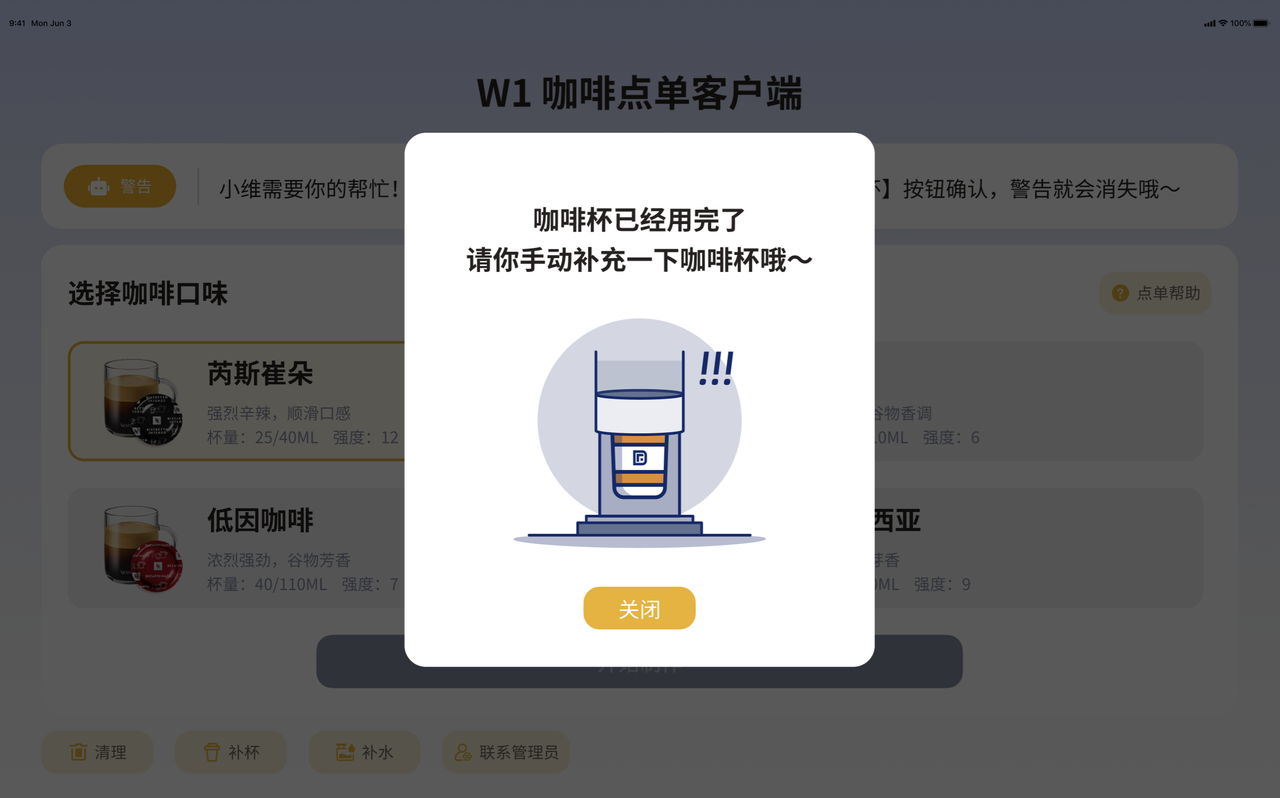
Please click "Close". After clicking Close, the status bar still shows a warning prompt, and the "Start Production" button is not clickable.
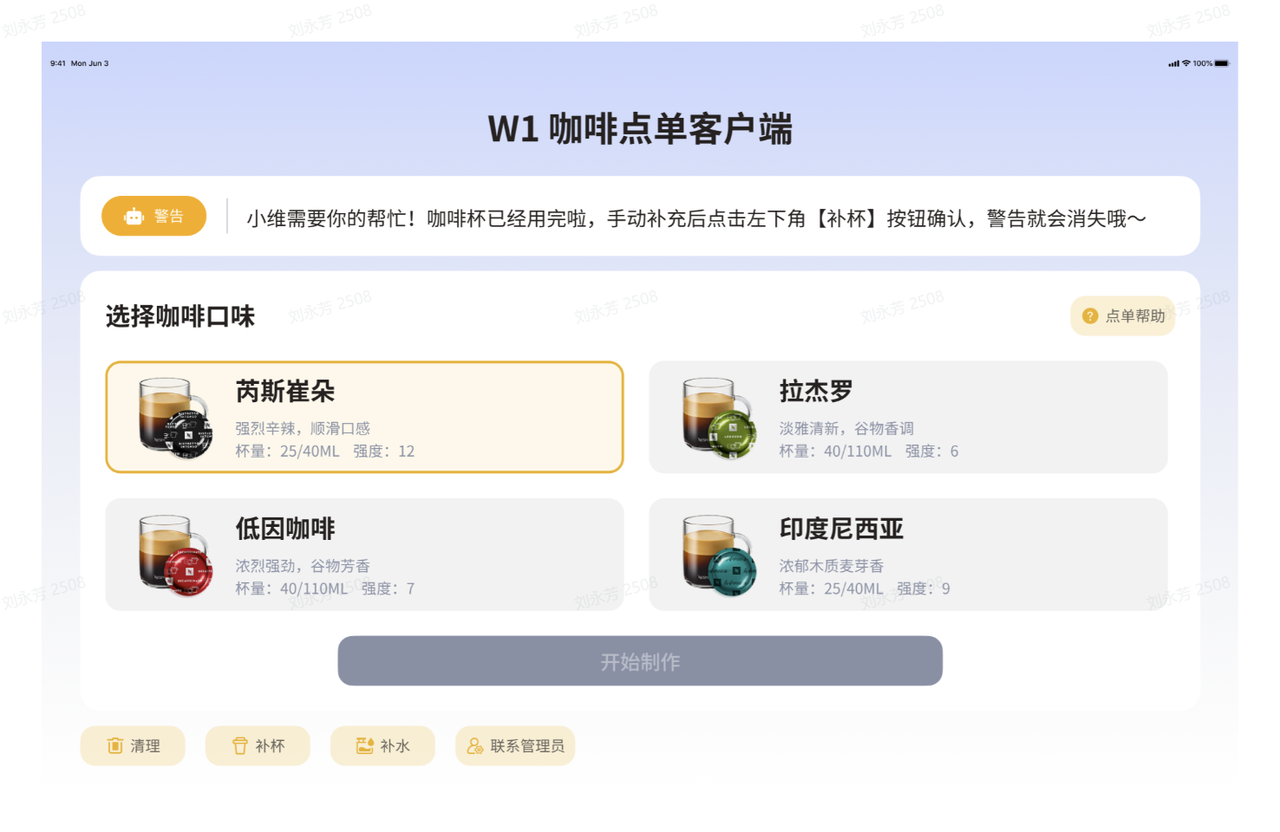
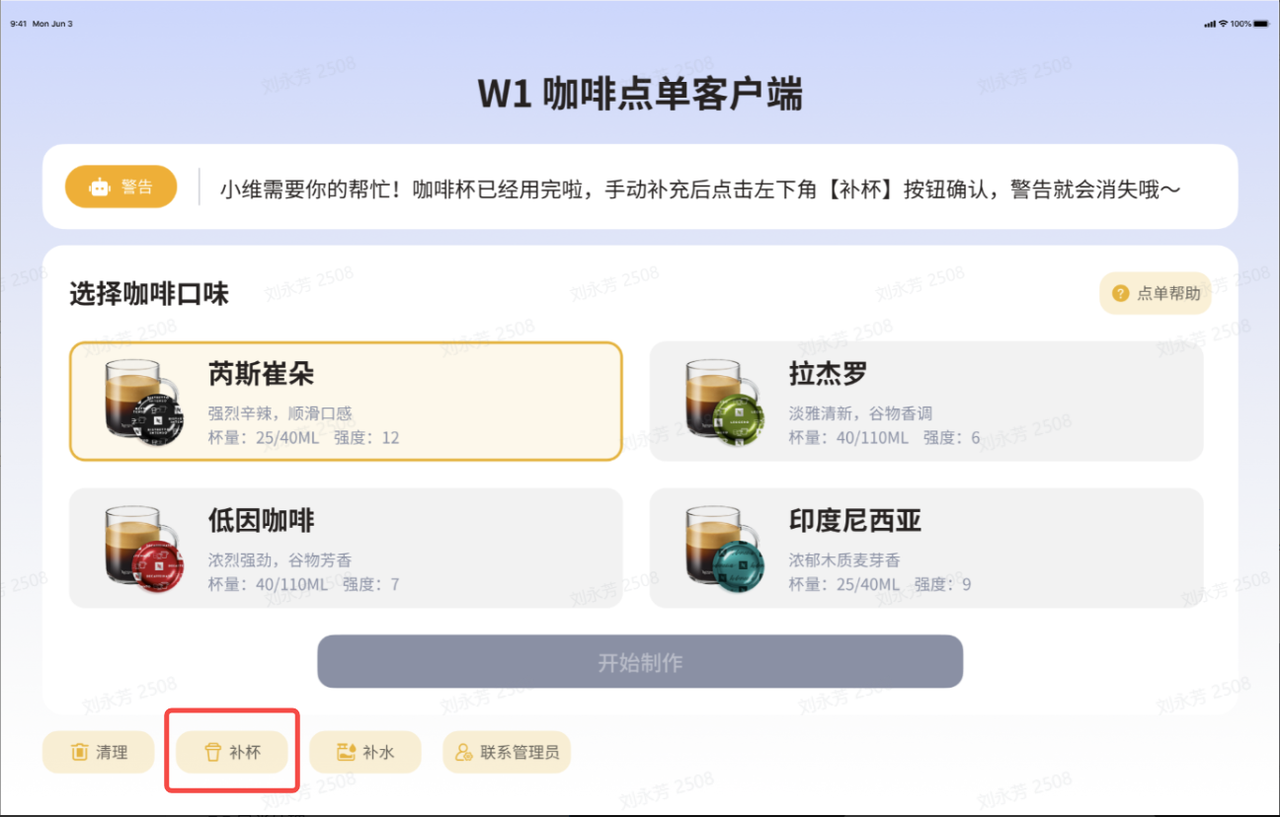
Please manually replenish coffee cups into the cup dispenser, and it is recommended to place half the quantity of coffee cups. After replenishing the coffee cups, click the "Replenish Cups" button, a confirmation pop-up window will appear, and selecting "Yes" will cancel the robot's warning voice broadcast.
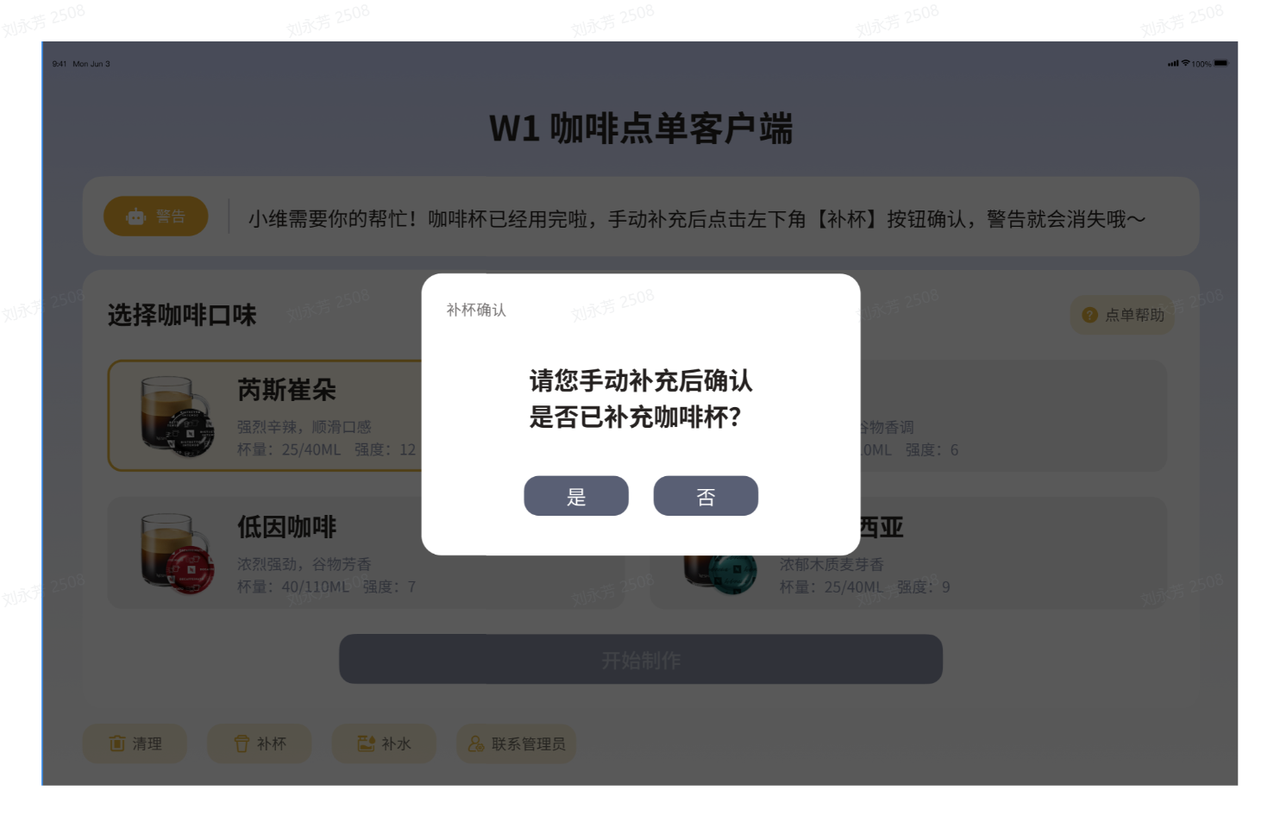
Click "Yes", the robot voice will announce "The cup has been replenished~", while the interface shows that the robot's working status returns to the "idle" state, allowing for a new order to be placed, and the robot will remake the coffee.
- If the number of coffee cups is sufficient, the robot will continue to execute the coffee-making process. It will pick up a coffee capsule with its left hand, remove a coffee cup with its right hand, place the coffee cup on the water tray of the coffee machine, and then close the lid of the coffee machine with its right hand.
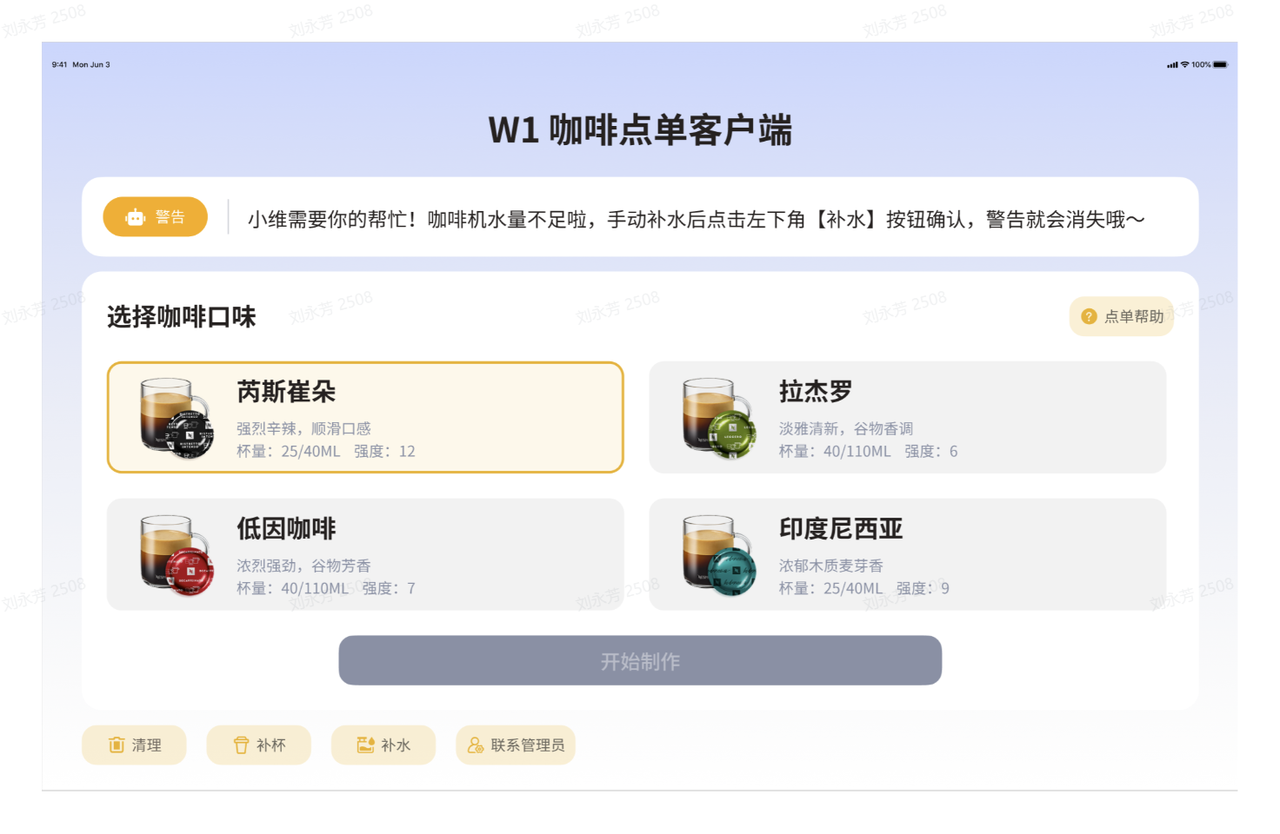
At this time, if the water level in the coffee machine's water tank is insufficient, a warning message "Insufficient water in coffee machine" will appear in the status bar of the order interface, as shown in the figure below.

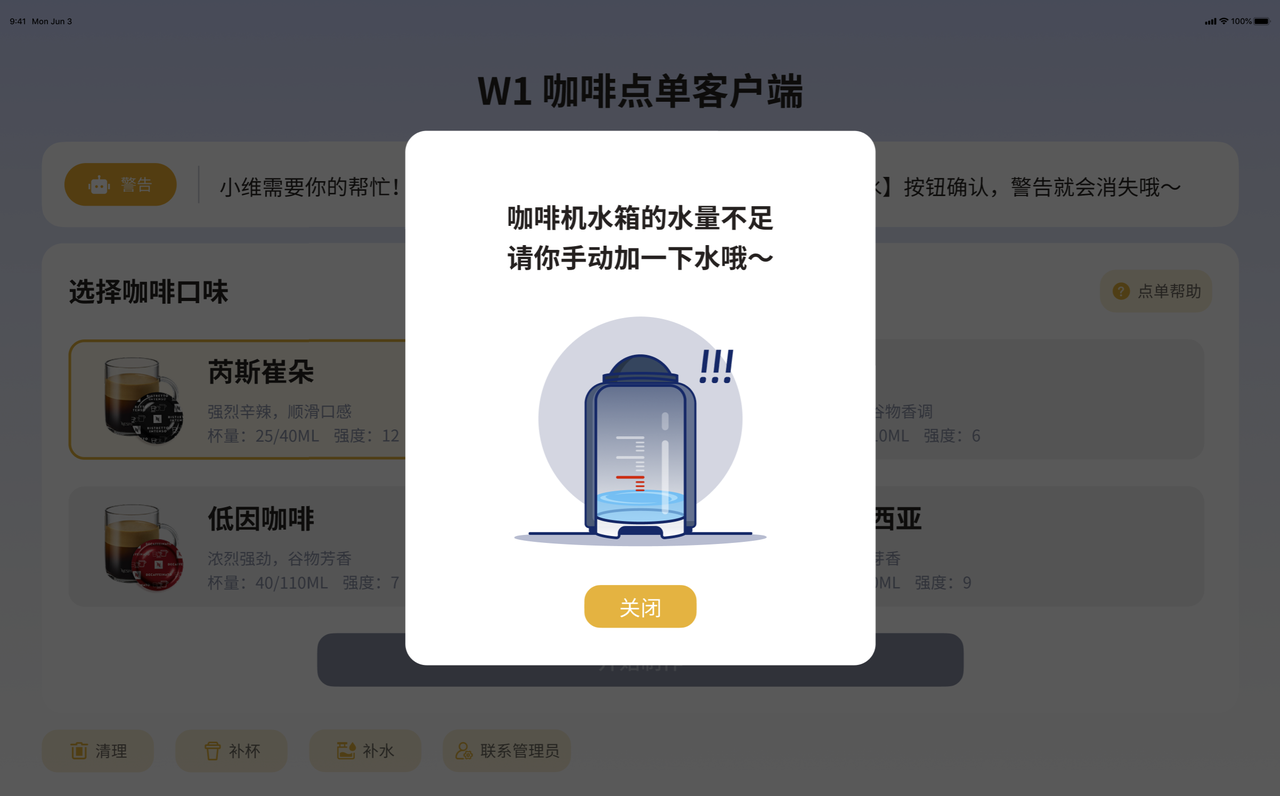
Please click "Close". After clicking Close, the status bar still shows a warning prompt, and the "Start Production" button is not clickable.
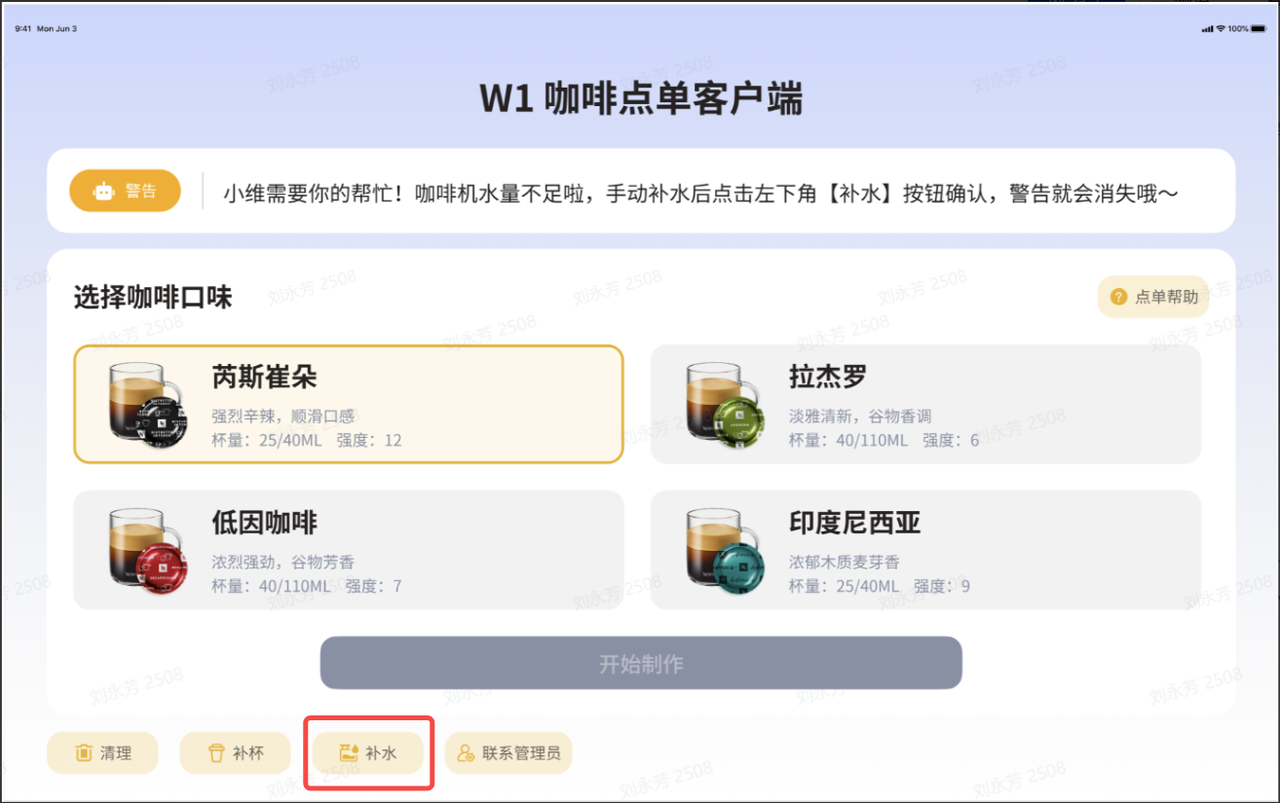
Manually add clean water to the coffee machine water tank, ensuring that the water level exceeds the minimum water level line. After adding water, click the "Refill" button, a refill confirmation pop-up window will appear, select "Yes" to cancel the robot's warning voice broadcast.
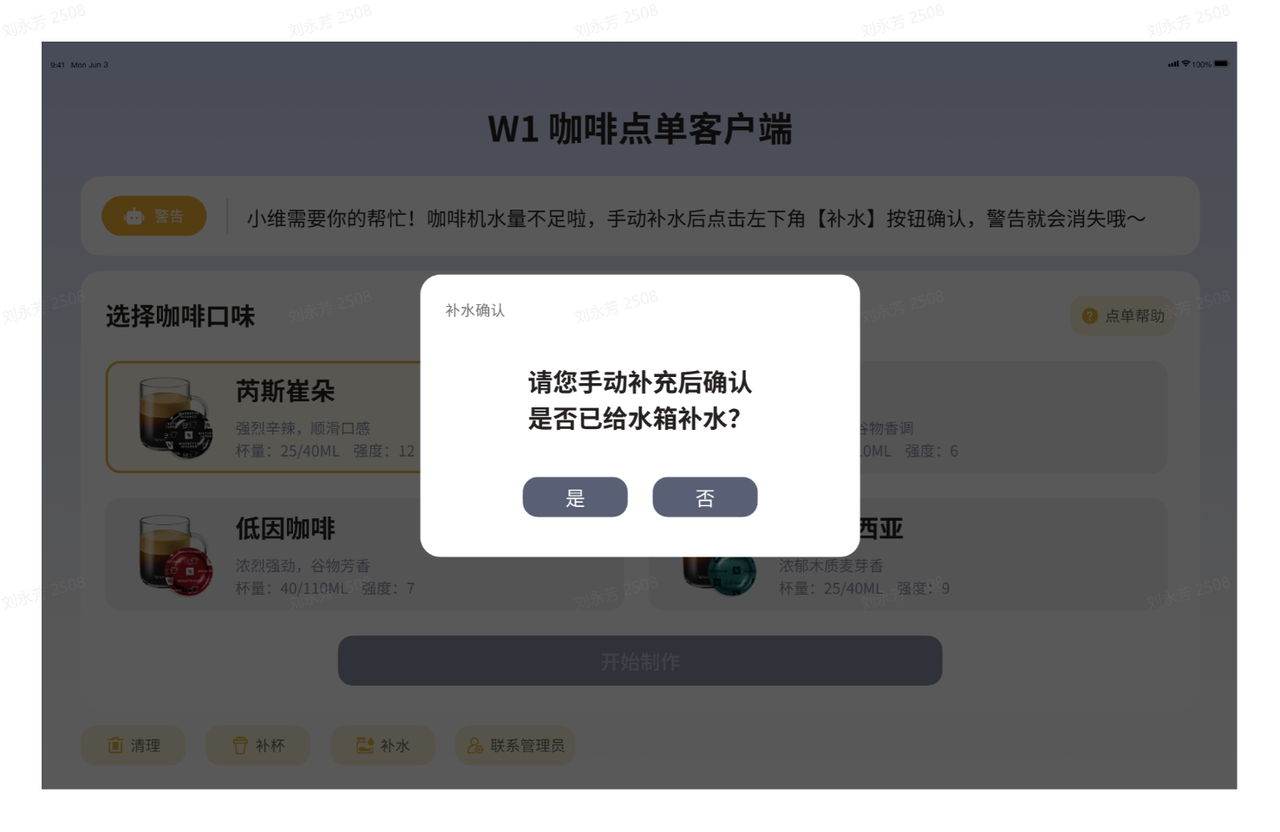
Click "Yes", the robot will voice announce "Water has been added~", and at the same time, the interface will show that the robot's working status has returned to the "idle" state, allowing for a new order to be placed and the robot to make coffee again.
- If the water level in the coffee machine is sufficient, the robot will continue to execute the coffee-making process, with its left hand inserting the coffee capsule into the coffee machine. At this time, if the coffee capsule waste bin in the coffee machine is full, a warning message "Coffee capsule waste bin is full" will appear in the status bar of the order interface, and a pop-up window will also appear, as shown in the figure below.

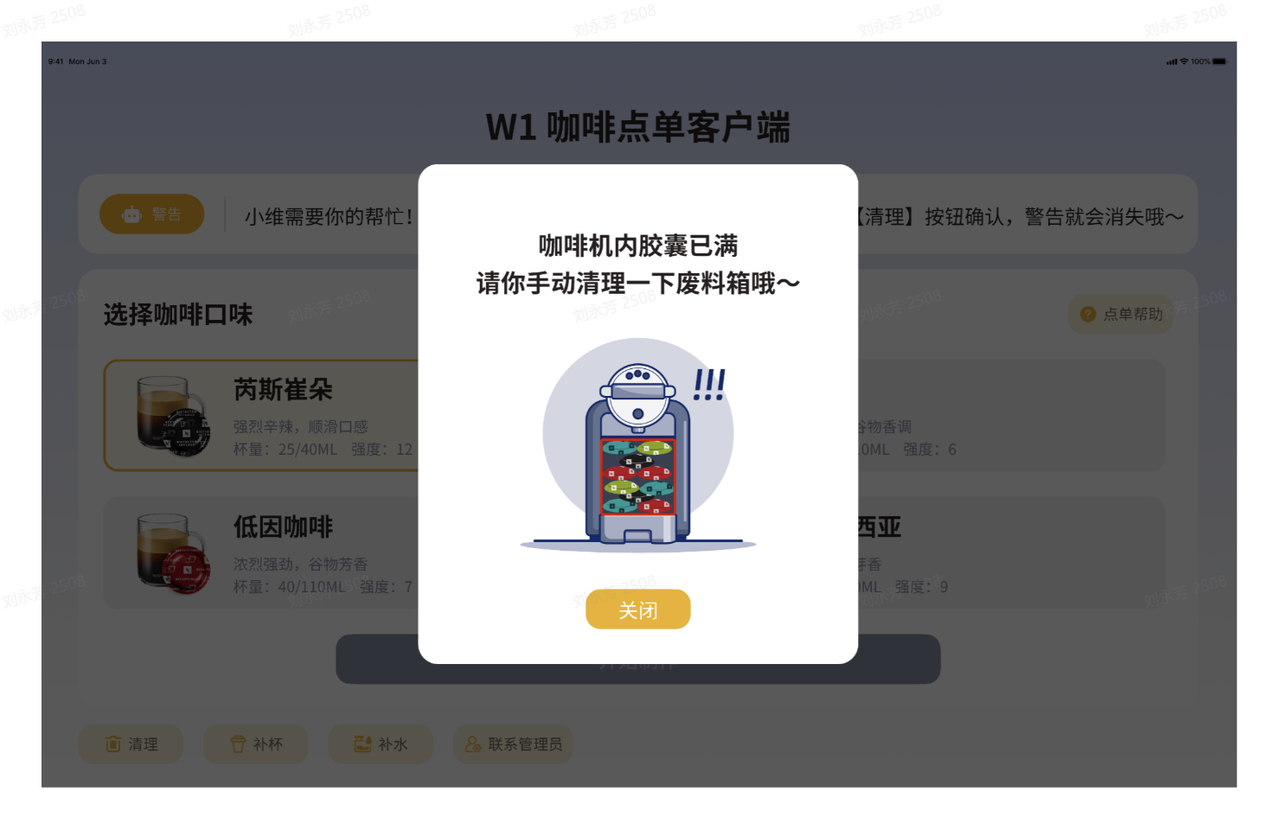
Please click "Close". After clicking Close, the status bar still shows a warning prompt, and the "Start Production" button is not clickable.
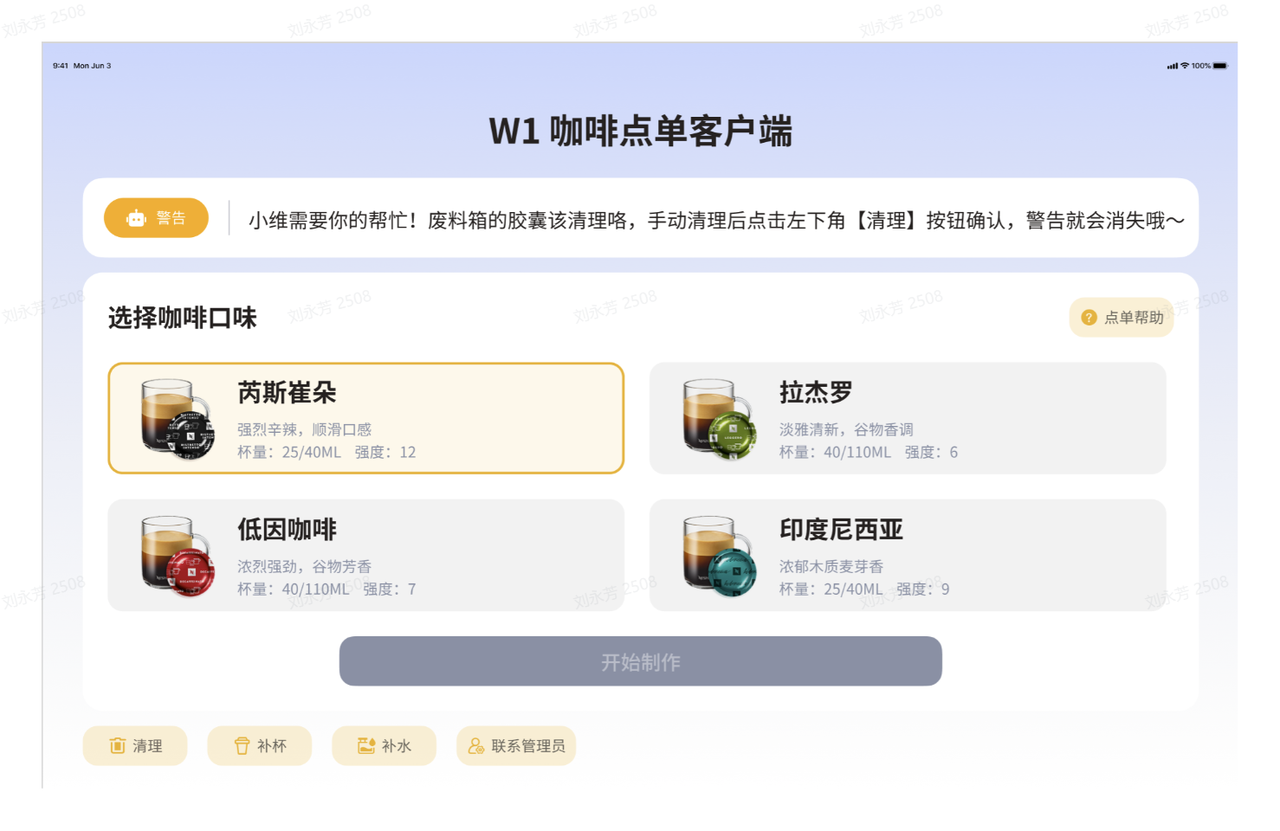
Please manually clean the coffee machine's waste bin. After cleaning the waste bin, click the "Clean" button, a cleaning confirmation pop-up will appear, select "Yes" to cancel the robot's warning voice broadcast.
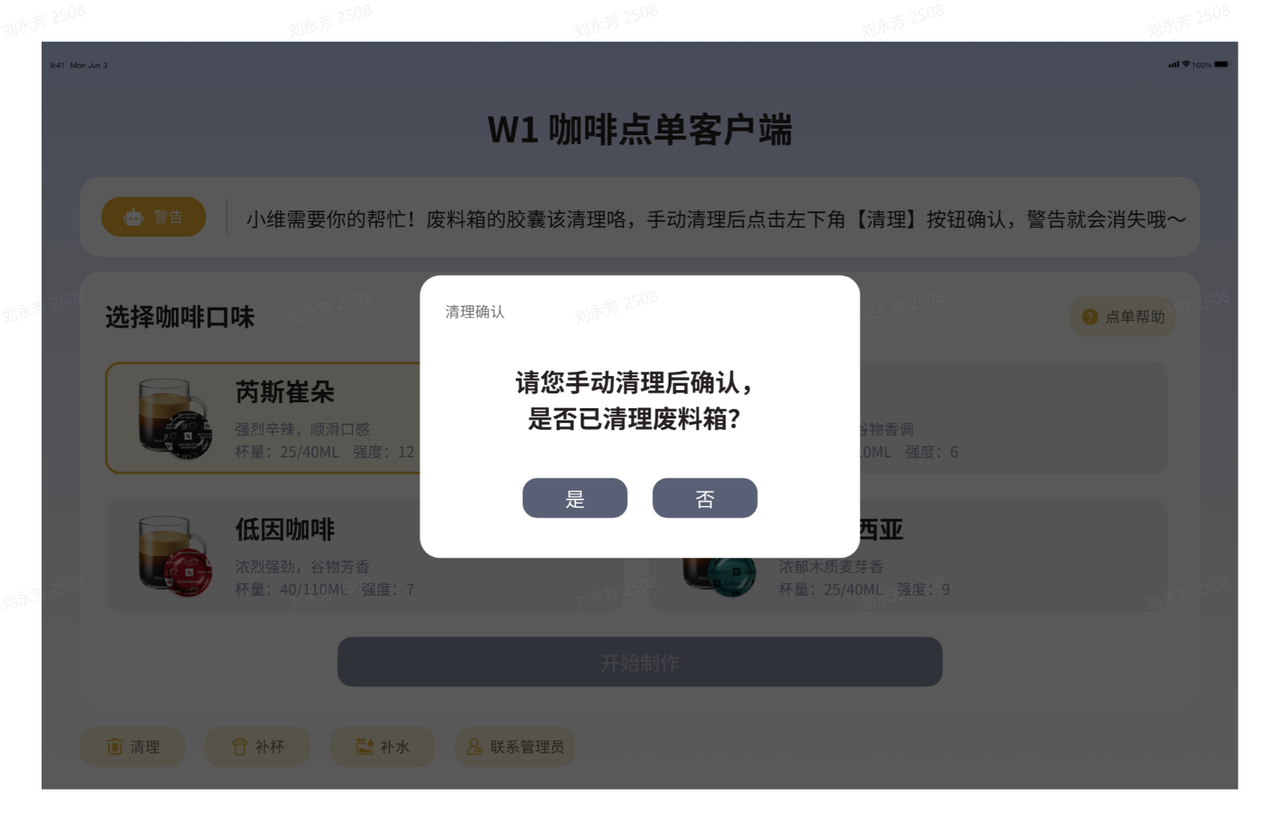
Click "Yes", the robot voice will announce "The capsule has been cleaned ~", while the interface shows that the robot's working status returns to the "idle" state, allowing for a new order to be placed and the robot to make coffee again.
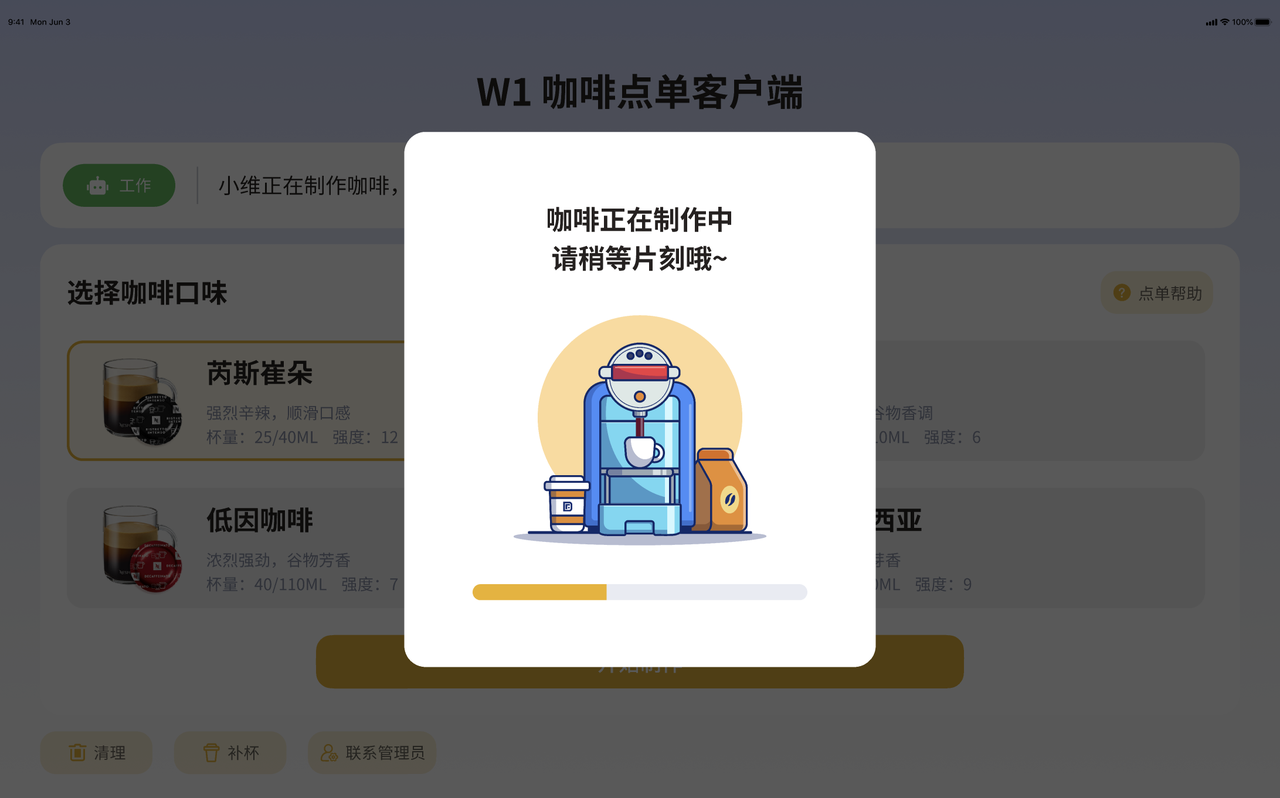
- If the coffee capsule is not full, the robot will continue to execute the coffee-making process. The left hand will drop the coffee capsule into the coffee machine, the right hand will click the 110ml cup size button on the coffee machine, and then wait a moment for the robot to extract the coffee.
3.2.3 Meal Pickup Process
After the coffee is brewed, a pop-up window appears on the tablet ordering interface, the robot places the brewed coffee in the pick-up area, and simultaneously a voice message broadcasts "Your coffee is ready, enjoy it".
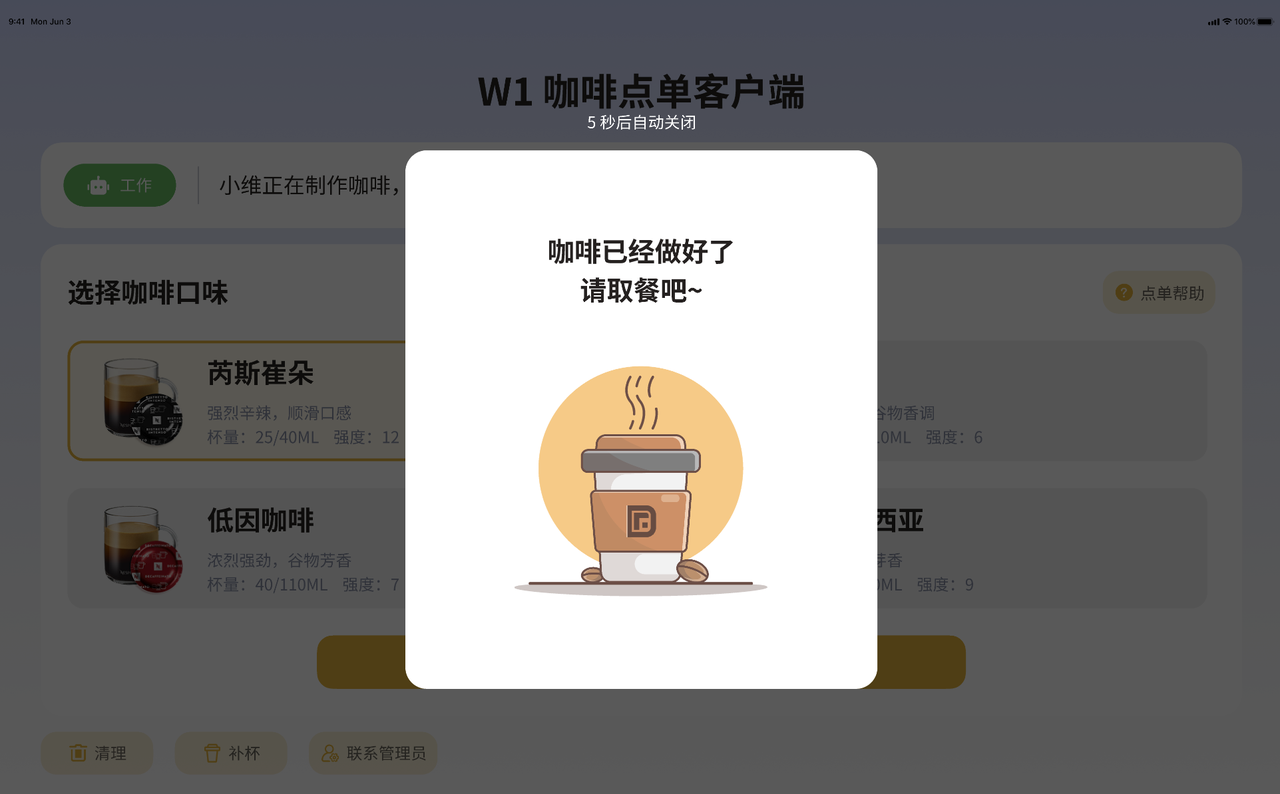
Re-interaction: If the user needs to place another order, they can directly say the corresponding command, such as "brew another cup of red coffee", and the robot will quickly respond and execute the operation.
If you need to put the robot into sleep mode.
3.3 Business closing stage
Waste disposal: Empty the used capsules from the coffee machine's waste bin, click "Clean" on the tablet ordering interface to initialize the used capsule count; recycle remaining coffee cups and trash; clean the waste bin to remove coffee residue and scale.
Supplies replenishment: According to pre-operation standards, replenish coffee capsules to ensure sufficient inventory of each flavor; replenish coffee cups; check the water level of the coffee machine and add clean water to exceed the minimum water level to prepare for the next day's operation.
Troubleshooting: Check if the robot status light remains constantly green and there is no abnormal voice broadcast; check through the W1 control interface if there are any unprocessed fault records, and if so, contact the Transdimensional Technical Support staff.
Power off the equipment: After confirming that all cleaning and replenishment work is completed, turn off the coffee machine, turn off the robot, turn off the tablet and wipe it, ensuring that the screen displays cleaning.
Complete the "End-of-Business Check Sheet", record the following details, and sign for confirmation:
| Inspection Item | Inspection Content | Inspection Result (Normal / Abnormal) | Exception handling scenarios |
|---|---|---|---|
| Waste cleanup | Waste capsule cleaning, waste bin washing, and garbage disposal | ||
| Material replenishment | Coffee capsules, coffee cups, water tank refilling | ||
| Troubleshooting | Robot status light, voice broadcast, fault record | ||
| Device power off | Robot, coffee machine, tablet | ||
| Environmental Cleanup | Cleanliness of the food pick-up area and operating area |
4. Voice Interaction
The voice interaction function includes speech recognition (ASR) and text-to-speech (TTS) services, allowing users to trigger complex task flows through the most intuitive voice commands, enabling the robot to listen to and understand user voice instructions (such as "make a cup of coffee"), and provide feedback and status prompts through voice, thus achieving natural human-machine interaction.
4.1 Wake-up command
When the user does not utter the wake-up command, the robot is in standby mode. The user needs to issue a clear wake-up command to the robot to engage in voice interaction with it.
| Wake-up Phase | Network Status | User | Robot Response |
|---|---|---|---|
| When the user does not utter the wake-up command, the robot is in standby mode | At this time, if the network connection | User: "XXXX" | "Please say Xiaowei wakes me up!" |
| If the network is disconnected at this time | Regardless of what the user says, the robot does not respond | ||
| The user utters the wake-up command | At this time, if the network connection | User: "Xiaowei Classmate" "Hello, Xiaowei" …… | "Hello, I'm here." |
| "Hello, I'm a barista. May I help you?" | |||
| If the network is disconnected at this time | "The current network is abnormal, and my brain is overloaded!" |
4.2 Sleep Mode
| Sleep Mode | User | Robot Response |
|---|---|---|
| Passive Hibernation | User: "Xiaowei, take a break" | "Okay, call me if you need anything." |
| Auto Sleep (When the robot does not enter the working state after 10 minutes, it will automatically enter the sleep state.) | - | "I'm going to take a break. Call me if you need anything." |
4.3 Coffee Mode
After waking up the robot, the user can interact with the robot via voice to place an order for coffee, and the robot will execute the task of making coffee. Chatting with the robot is not supported in coffee mode; no matter what the user says, the robot will only voice broadcast "Wait a moment, I'm making coffee!"
4.3.1 Coffee Ordering
| User | Robot Response |
|---|---|
| "Xiaowei, make me a cup of coffee." Brew a cup of blue coffee "Blue Coffee"/"Green Coffee" "Rajero Coffee"/"Decaffeinated Coffee" …… | "Sure, I'll brew it for you right away." "Sure, I'll make it for you right away." "Okay, you can rest assured when you leave it to me." |
4.3.2 Coffee is being brewed
During the coffee-making process, with network connectivity, the robot will provide real-time voice announcements as tasks are executed. When a malfunction occurs, it will voice the message "There's a problem with coffee making. Let me make it for you again." To continue making coffee, you need to place a new order.
When the network is disconnected, the robot will tell a coffee-related story, and there will be no real-time task voice announcements.
The coffee-making process is as follows:
| Phase | Situation | User | Robot voice broadcast |
|---|---|---|---|
| After the user places an order | Normal | - | "I'll make a ristretto coffee." "I'll make a cup of Rajero coffee." "I'll make a cup of decaffeinated coffee." "I'll make a cup of Indonesian coffee." |
| If the robot does not hear the taste selection | - | "I didn't catch what flavor of coffee you wanted, so I'll help you randomly choose one." | |
| The robot opens the lid of the coffee machine | Normal | - | "I'll open the lid" |
| The robot holds a capsule in its left hand and a coffee cup in its right hand | Normal | - | "I'm getting the capsules and the cup now." |
| If the robot's vision system detects that there are no capsules left on the capsule tray | - | "No capsules left, please replenish capsules" | |
| If the robot's vision system recognizes that there are no capsules of the corresponding flavor | - | "There are no black capsules left." There are no green capsules left There are no red capsules left There are no blue capsules left | |
| If the robot's vision system detects that there are no coffee cups in the cup dispenser | - | There are no more cups on the cup holder. Please replenish the cups. | |
| If the robot fails to successfully pick up the coffee cup | - | "Oops, I didn't catch the cup. Let me pick it up again." | |
| If neither the coffee capsule nor the coffee cup is successfully retrieved | - | I didn't catch the cup and capsule, so I'll pick them up again. | |
| Put the capsule into the coffee machine and place the coffee cup on the water tray | Normal | - | "Now put the coffee capsule and cup into the coffee machine" |
| If the waste capsule container in the coffee machine is full | - | "The capsule is full, the capsule is full, the capsule is full, the capsule is full, the capsule is full" | |
| The robot closes the lid of the coffee maker | Normal | - | "I'll close the lid" |
| The robot clicks the 110ml cup size button | Normal | - | "Start brewing a large cup of coffee" |
| If visual recognition detects that the three cup volume buttons on the coffee maker are all flashing red, it indicates that the coffee maker is running out of water. | - | "The red light on the coffee maker is flashing, please add water." |
| Phase | Situation | User | Robot voice broadcast |
|---|---|---|---|
| After the user places an order | Normal | - | "I'll make a ristretto coffee." "I'll make a cup of Rajero coffee." "I'll make a cup of decaffeinated coffee." "I'll make a cup of Indonesian coffee." |
| If the robot does not hear the taste selection | - | "I didn't catch what flavor of coffee you wanted, so I'll help you randomly choose one." | |
| The robot opens the lid of the coffee machine | Normal | - | "I'll open the lid" |
| The robot holds a capsule in its left hand and a coffee cup in its right hand | Normal | - | "I'm getting the capsules and the cup now." |
| If the robot's vision system detects that there are no capsules left on the capsule tray | - | "No capsules left, please replenish capsules" | |
| If the robot's vision system recognizes that there are no capsules of the corresponding flavor | - | "There are no black capsules left." There are no green capsules left There are no red capsules left There are no blue capsules left | |
| If the robot's vision system detects that there are no coffee cups in the cup dispenser | - | There are no more cups on the cup holder. Please replenish the cups. | |
| If the robot fails to successfully pick up the coffee cup | - | "Oops, I didn't catch the cup. Let me pick it up again." | |
| If neither the coffee capsule nor the coffee cup is successfully retrieved | - | I didn't catch the cup and capsule, so I'll pick them up again. | |
| Put the capsule into the coffee machine and place the coffee cup on the water tray | Normal | - | "Now put the coffee capsule and cup into the coffee machine" |
| If the waste capsule container in the coffee machine is full | - | "The capsule is full, the capsule is full, the capsule is full, the capsule is full, the capsule is full" | |
| The robot closes the lid of the coffee maker | Normal | - | "I'll close the lid" |
| The robot clicks the 110ml cup size button | Normal | - | "Start brewing a large cup of coffee" |
| If visual recognition detects that the three cup volume buttons on the coffee maker are all flashing red, it indicates that the coffee maker is running out of water. | - | "The red light on the coffee maker is flashing, please add water." |
4.3.3 Coffee brewing is complete
Coffee brewing is complete, and the robot removes the coffee:
- "It's brewed, I'll take out the coffee."
- "Your coffee is ready!"
- "Your coffee is ready, enjoy!"
4.4 Network anomaly
The following is the voice interaction of the robot under network anomaly:
| Phase | Network Status | Robot voice broadcast |
|---|---|---|
| When the user does not utter the wake-up command, the robot is in standby mode | Network Disconnected | No matter what the user says, the robot does not respond. |
| The user utters the wake-up command | "The current network is abnormal, and my brain is overloaded!" | |
| When the robot is awakened and not performing the coffee-making task | "The current network is abnormal, and my brain is overloaded!" | |
| The robot has been awakened and is making coffee | There is no real-time task voice broadcast, only a fixed story will be told. |